
How to Set Up 301 Redirects in an .htaccess File
September 8, 2025
Introduction
Imagine moving to a new house but forgetting to tell the post office, important mail would never reach you. A similar principle applies to websites. When you change a page’s URL or move to a new domain, you need a “forwarding address” so visitors and search engines can find the new location. In the digital world, this forwarding address is called a 301 redirect.
A 301 redirect automatically sends users and search engine crawlers from an old URL to a new one, ensuring no one hits a dead end (404 error).
In this comprehensive guide, we’ll demystify 301 redirects, explaining what they are, why they’re critical for SEO, when to use them, and how to implement them correctly. By the end, you’ll know how to harness 301 redirects to protect your hard-earned rankings and provide a seamless user experience.
What is a 301 Redirect?
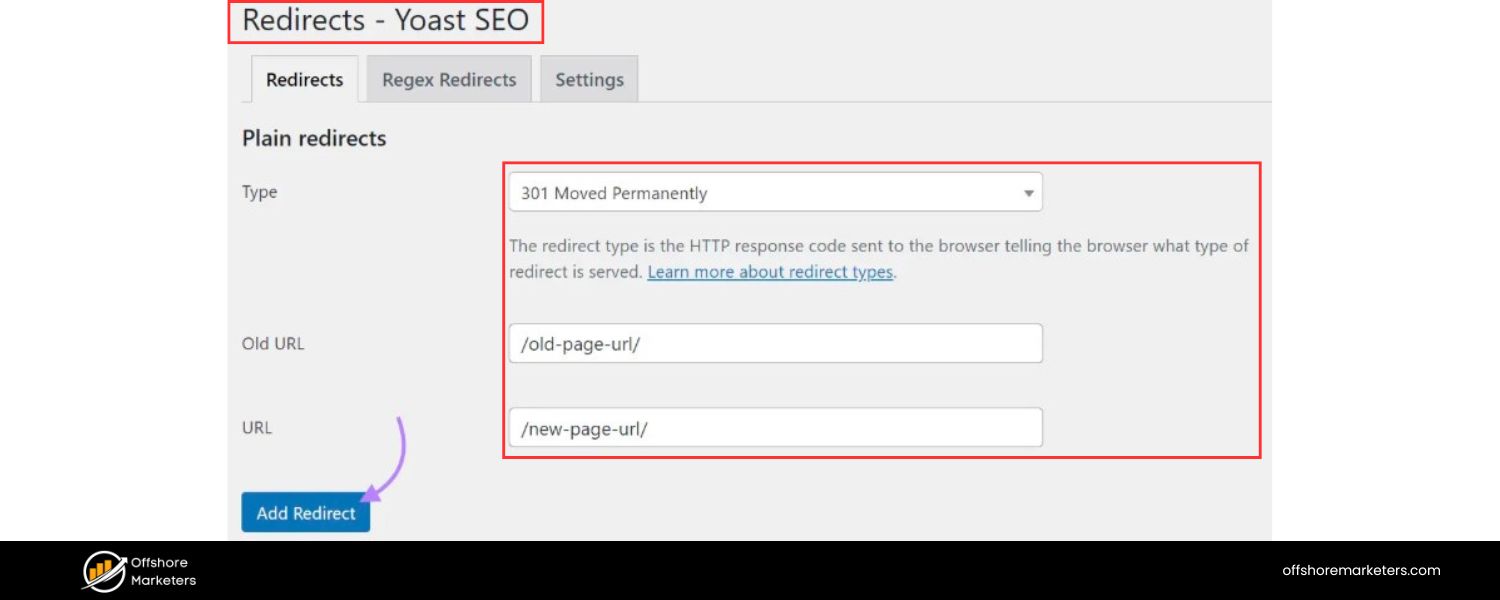
A 301 redirect is an HTTP response status code that means “Moved Permanently.” It informs a visitor’s web browser (and search engine bots) that the page they’re trying to reach has permanently changed its address, and it provides the new URL to access. In practice, if someone visits OldPageURL, a 301 redirect will automatically send them to NewPageURL without any manual action.
This happens almost instantly, users might only notice that the URL in their browser has changed. Under the hood, the web server responds to the request for the old URL with a 301 status code and the new location, prompting browsers to fetch the new page.
From a technical standpoint, 301 is a server-side redirect (handled by the web server before any page content loads). This is the preferred method for redirection because it’s fast and reliably understood by all user agents.
The HTTP specification notes that a 301 response is cacheable by default, browsers may remember the redirect so they go straight to the new URL on subsequent visits. In other words, a 301 is meant to be a long-term (essentially permanent) change, so clients and crawlers should update their records to use the new URL going forward.
Why 301 Redirects Matter (SEO and User Experience)
1. Preserve Search Rankings
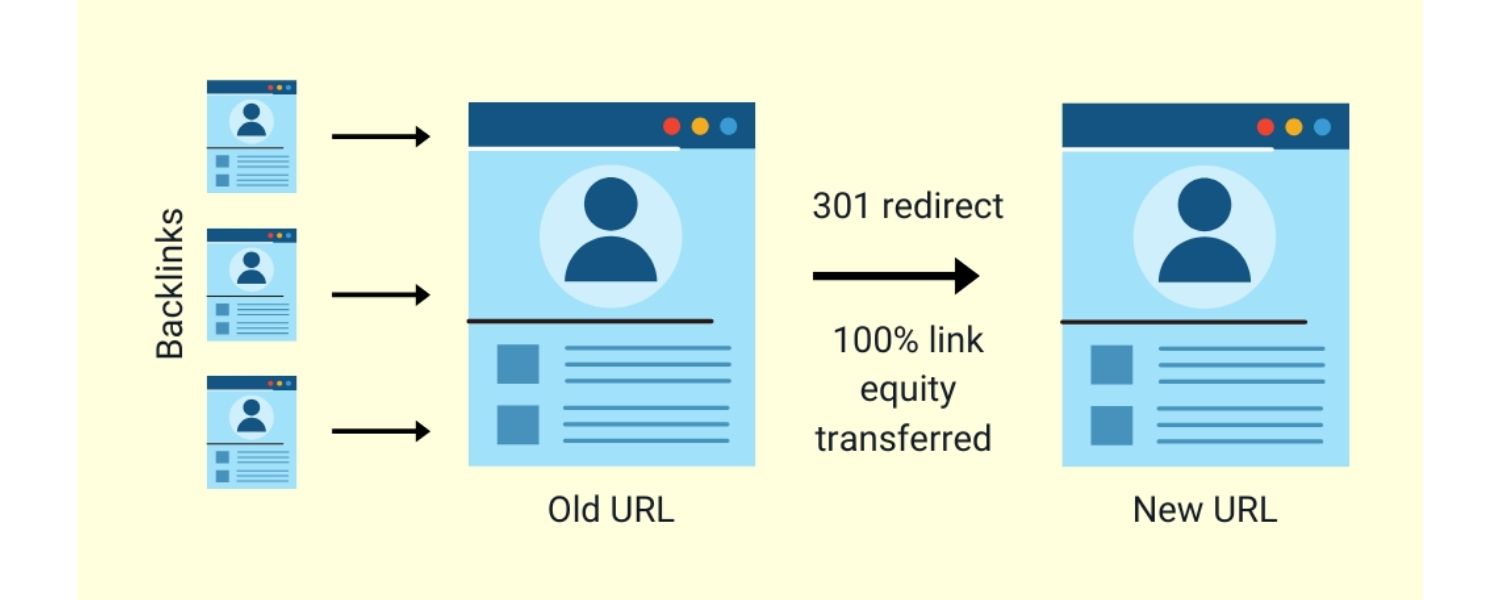
301 redirects are vital for SEO because they allow you to change URL structures or move content without losing the search equity that page had earned.
When implemented, a 301 passes on ranking signals from the old page to the new page. In fact, Google’s own analysts have confirmed that using 301 redirects does not harm or dilute PageRank (a measure of link authority).
Essentially, all those backlinks and SEO “juice” pointing to your old URL can be effectively transferred to the new URL via a 301 redirect. Without a proper redirect, changing a URL would mean starting from scratch in the eyes of search engines, a scary prospect if that page was ranking well.
A famous cautionary tale is Toys “R” Us: when they bought the valuable domain “toys.com” in 2010, they failed to set up 301 redirects from their old site to the new one, and their search rankings plummeted because Google treated the new domain like a brand-new website. The lesson? Always use 301 redirects to tell search engines a page has permanently moved so you retain your hard-earned SEO rankings.
2. Avoid Broken Links & Bad UX

Beyond search engines, think about your users. If someone has your page bookmarked or clicks an old link that no longer works, they’ll see an error (like a 404 Not Found) and likely get frustrated or leave. A 301 redirect spares them this pain by instantly taking them to the correct, updated page.
It’s like giving your customers a change-of-address notice so they always arrive at the right place. This improves user experience by preventing dead ends. In fact, it’s considered unprofessional to have lots of broken links on your site, it erodes trust.
With 301 redirects, visitors who knew your old URL won’t feel lost; they’ll seamlessly reach the content they wanted, often without even realising the URL changed. This kind of smooth navigation keeps users engaged and happy, which indirectly benefits your SEO as well (happy visitors tend to spend more time on the site and come back again).
3. Maintain Backlink Value
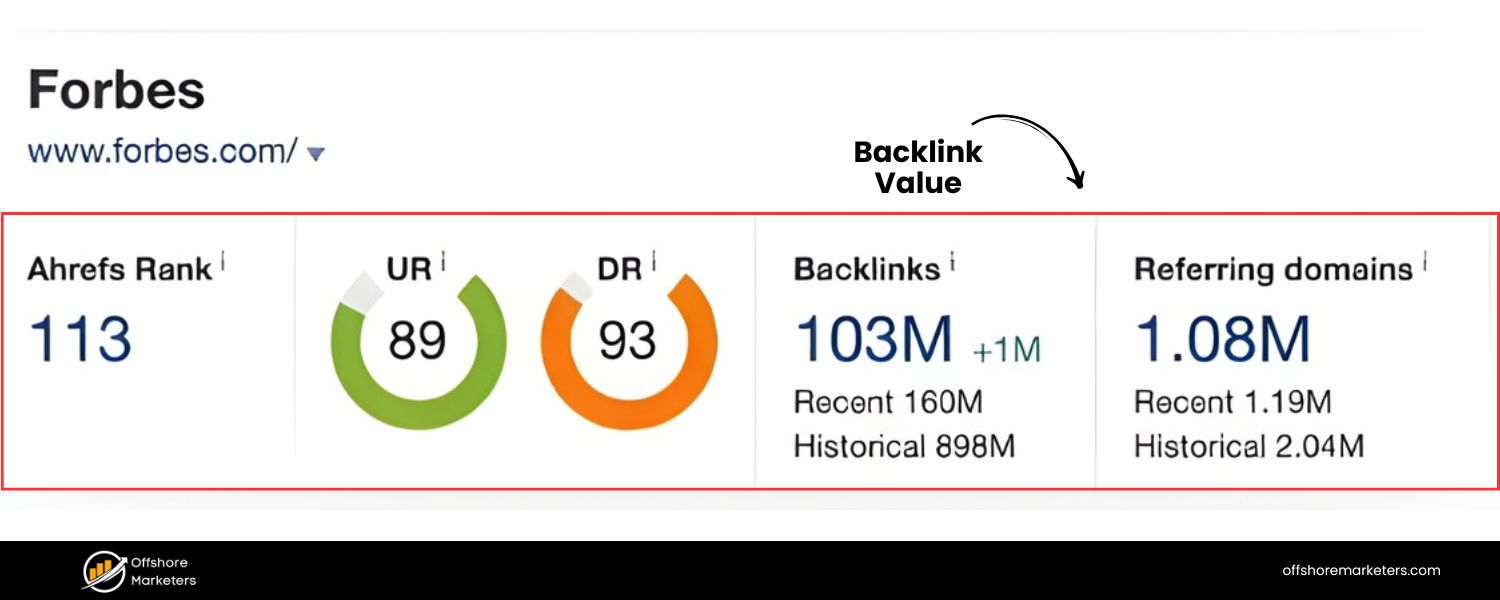
If other websites link to your content (backlinks), those links contribute to your domain’s authority. If you move or rename the content without a redirect, all those external links will break – essentially wasting the “votes of confidence” those backlinks provided. A 301 redirect ensures that anyone clicking those external links will be sent to your new page, and search engines will consolidate the link authority to the new URL.
It’s like preserving recommendations and references; you wouldn’t want to throw away references that bolster your reputation. By using 301s, you keep the referral traffic flowing and uphold your site’s credibility in the eyes of search algorithms.
4. It’s Recommended by Search Engines
Both Google and Bing explicitly recommend using 301 redirects for any permanent URL change so their indexes can be updated accordingly. If your content moves and isn’t expected to come back, a 301 is the proper signal to search engines. In contrast, using a temporary redirect or no redirect at all could result in search engines either dropping the page or retaining the wrong URL in results.
Google uses 301 redirects as a strong hint to eventually replace the old URL with the new one in their search results. In short, 301 redirects help search engines keep their listings accurate and up-to-date – which means users searching will be taken to your new page, not a broken old link.
When Should You Use a 301 Redirect?
Any time a URL changes permanently, you should consider implementing a 301 redirect. Here are the most common scenarios where 301s are essential:
1. Website Domain Changes or Rebranding
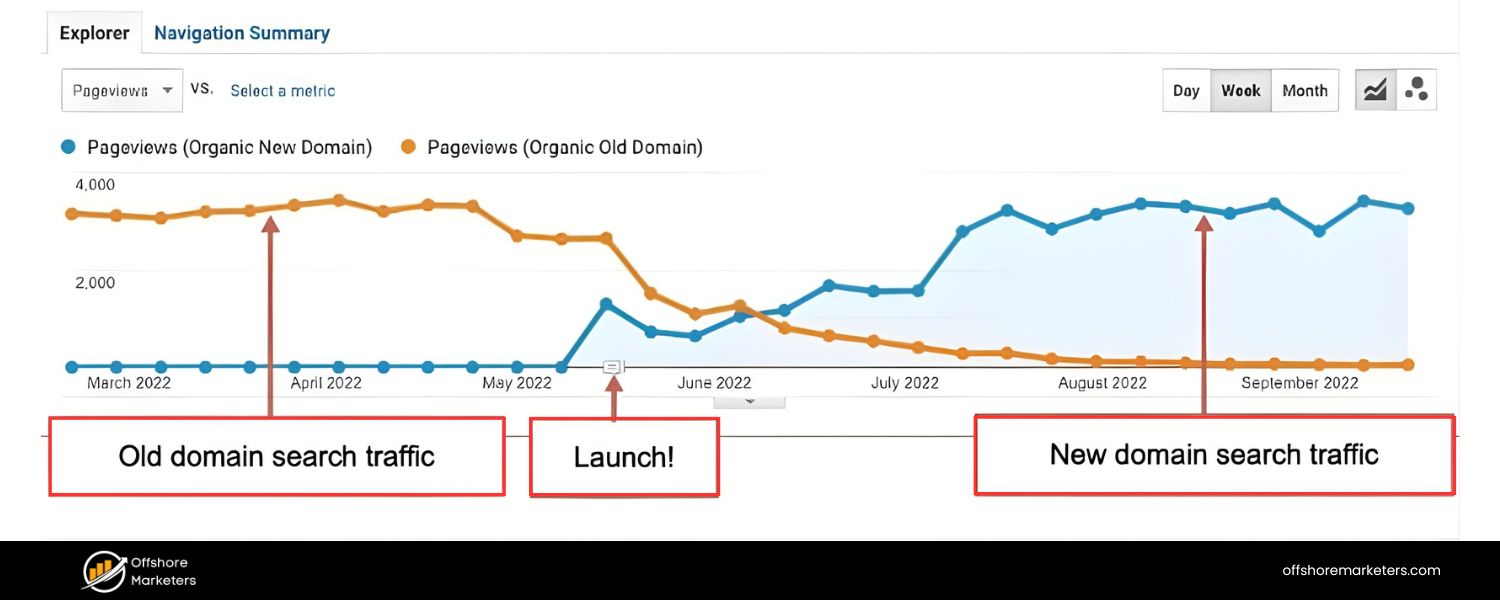
If you move your entire website to a new domain (for example, changing your company’s name or acquiring a better domain), you must set up 301 redirects from the old domain’s pages to the new domain’s pages. This is a classic site migration. Done correctly, page-to-page 301 redirects will help carry over your search rankings to the new domain with minimal impact.
For instance, redirect oldsite.com/about to newsite.com/about, oldsite.com/contact to newsite.com/contact, etc. If the site structure remains the same, some platforms allow a blanket domain redirect (so every request to olddomain/page goes to newdomain/page). If the structure is changing, you should create a detailed redirect map matching each old URL to its new counterpart.
Failing to do this will confuse users and search crawlers; in a worst-case scenario, your new domain could be treated as an entirely new site with zero authority.
2. Switching from HTTP to HTTPS
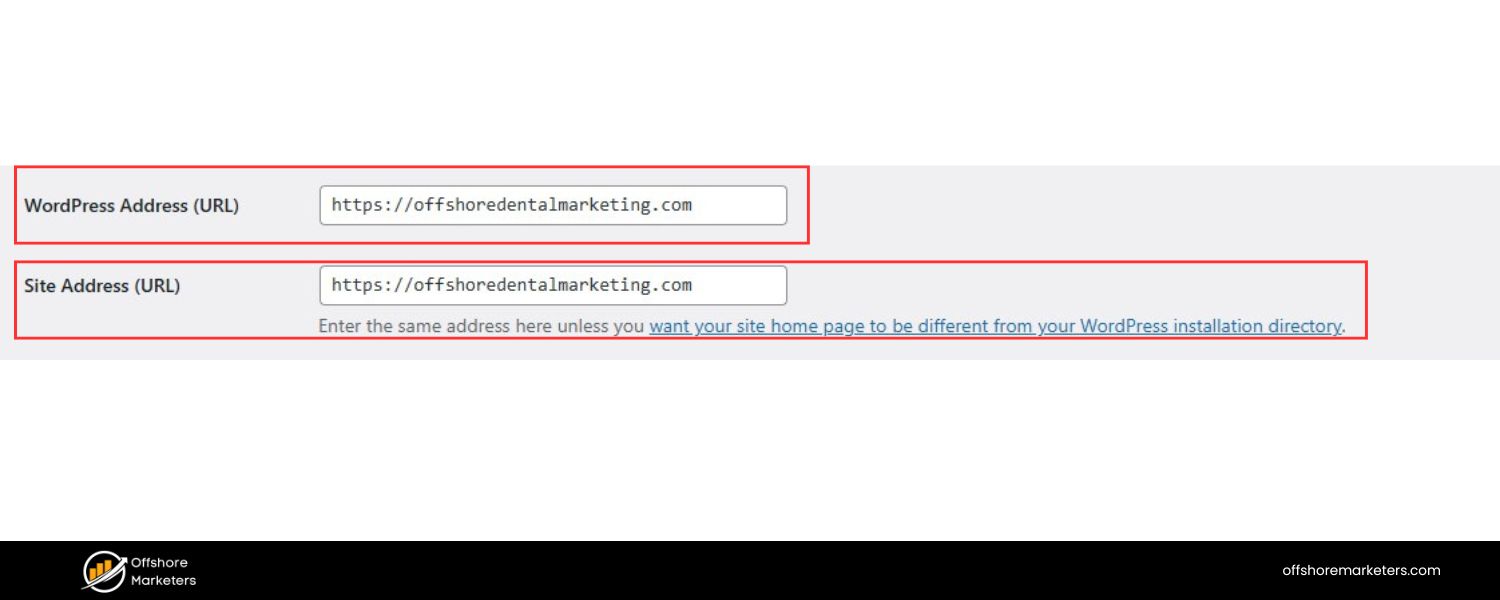
Upgrading your site to HTTPS (a secure protocol) is highly recommended for security, and it’s actually a minor ranking factor for Google. When you make the switch, all your pages will get new “https://” URLs.
Implementing 301 redirects from every http:// page to the corresponding https:// page is considered best practice. This ensures anyone following an old non-secure link (or coming from a search result indexed before the switch) will automatically land on the secure version. It also tells search engines that the HTTPS version is the permanent, preferred URL.
Without these redirects, you’d effectively have duplicate site versions (one HTTP, one HTTPS) which can split traffic and SEO signals. Most web servers or hosting platforms support site-wide 301 redirect rules to enforce HTTPS, often via a single configuration rule.
3. Renaming or Restructuring URLs
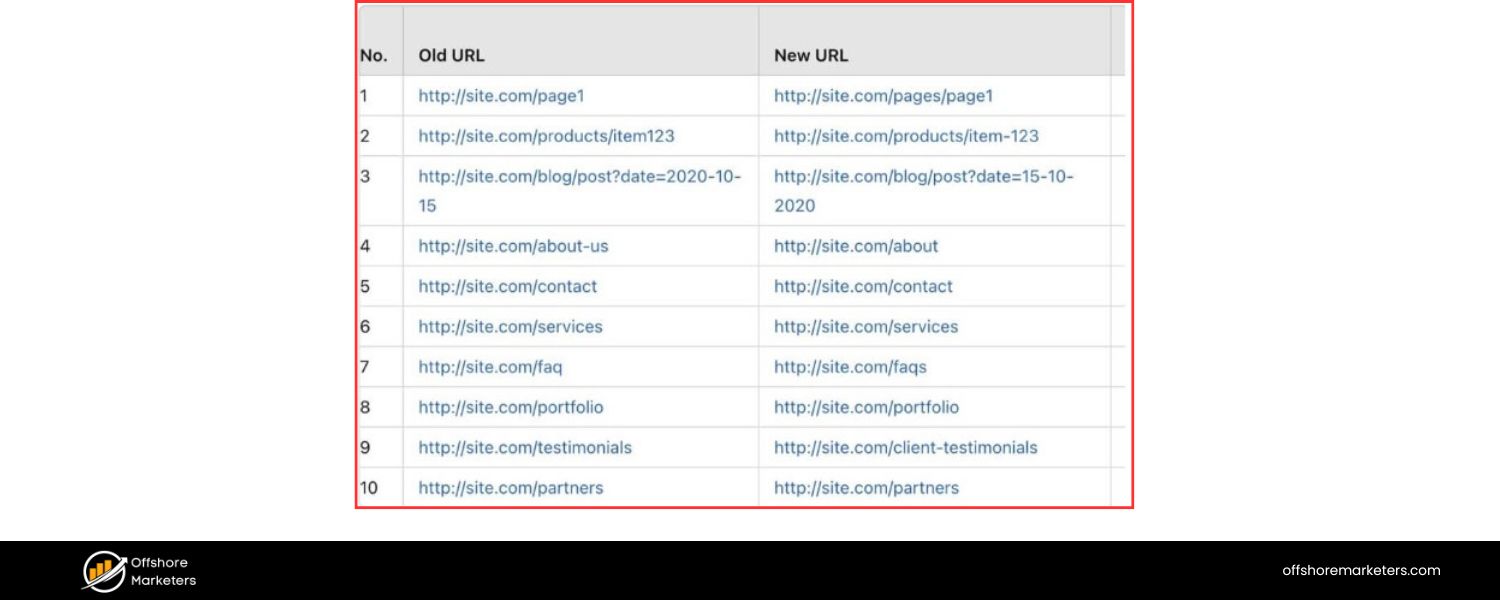
If you change a page’s URL slug or move it to a different section of your site, use a 301 redirect from the old address to the new address. Perhaps you realized yoursite.com/services.html would be better as yoursite.com/services/ or you changed a lengthy URL to a shorter, cleaner version.
Maybe you re-organized your blog categories or product hierarchy, causing page URLs to change. In all these cases, a 301 ensures that bookmarks, old marketing links, or search engine results for the old URL will seamlessly take users to the correct new page.
For example, if you update a URL to fix a typo or improve SEO (say /old-blog-post to /new-and-improved-blog-post), a 301 redirect will forward visitors and bots to the new URL so you don’t lose the traffic that the old URL was getting.
4. Content Updates and Consolidation
Websites evolve. You might replace an old piece of content with a new one, or merge several smaller pages into a single comprehensive page. When content is merged or replaced, 301 redirects are crucial.
For instance, if you have multiple articles on similar topics that you decide to consolidate into one better article, redirect each of the old URLs to the new consolidated page. This way, any SEO value those multiple pages had is combined, and users who find the outdated URLs will be taken to the newest, most complete content.
This technique is also used to solve keyword cannibalization – where two pages compete for the same keyword. By merging and redirecting, you ensure search engines focus all ranking power on the single best page rather than splitting signals between duplicates.
Note:
Only redirect to a truly equivalent page that satisfies the same user intent. Don’t redirect an old page to something unrelated (more on that in the mistakes section).
If there is no equivalent content to point to (for example, you’re removing a page permanently and it doesn’t have a replacement), it may be better to let it return a 404 Not Found or a 410 Gone, which tells search engines the page is intentionally gone.
5. Deleting Pages or Products
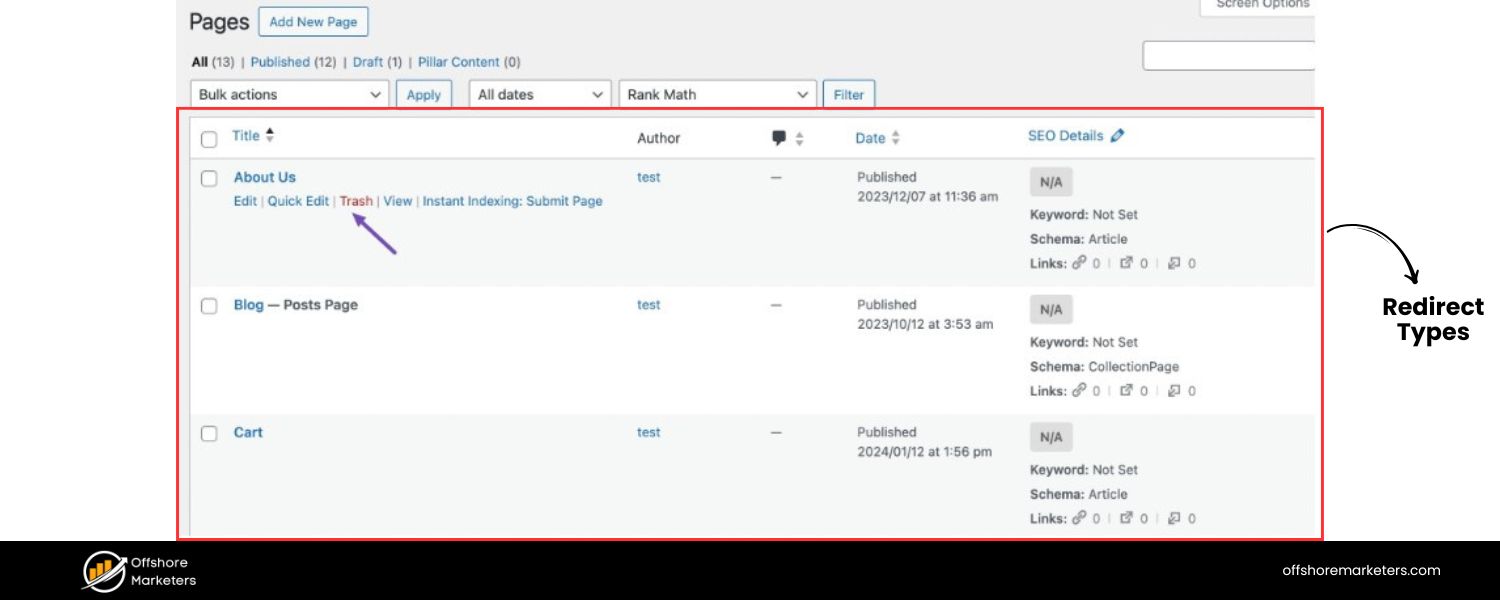
When you retire a page (such as discontinuing a product or removing an old service page) and you have a replacement or related page that covers similar information, use a 301 redirect. For example, if “Product A” is replaced by “Product B”, set up a redirect from the old product page to the new product page so customers and search engines know where to find the relevant info.
If you’re just removing content with no direct replacement, you might choose not to redirect at all (a rare case where a 404 is acceptable), but in general you want to salvage any traffic or SEO value by redirecting to the next best page.
Always choose the most relevant page as the target of the redirect. A well-chosen redirect target can even help users discover an updated product or content that they weren’t aware of.
6. Fixing Duplicate Content and Preferred URLs
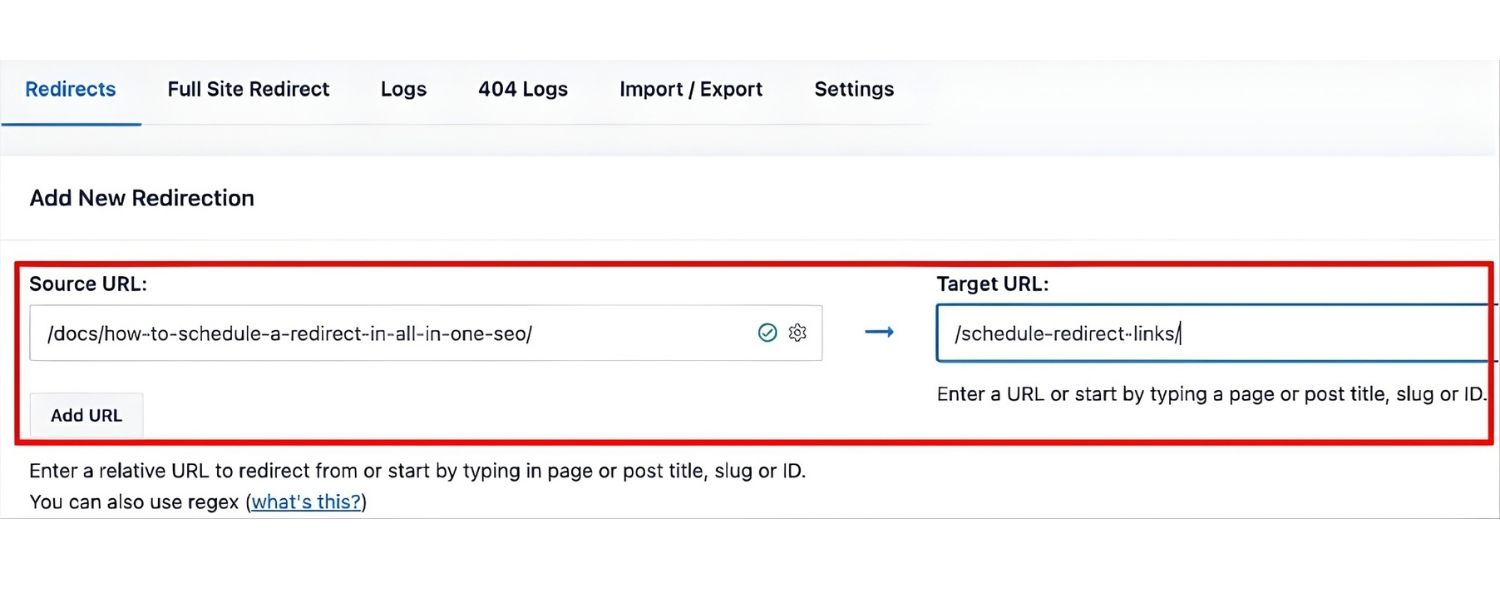
In technical SEO, it’s common to have multiple URLs that serve the same content. For instance, your site might be accessible at both http://example.com and http://www.example.com, or a page might load with or without a trailing slash ( /page vs /page/ ), or both uppercase and lowercase URLs might work.
These duplicates can confuse crawlers and dilute your SEO signals if not handled. The solution is to pick a canonical URL and 301 redirect all other variants to that preferred URL.
For example, if you prefer the www version of your domain, redirect all non-www requests to the www URL (and vice versa if you prefer non-www).
If you move all content into a new subfolder or change your URL schema, redirect old patterns to new ones. Another common use is redirecting old index pages (like example.com/index.html) to the clean root URL ( example.com/ ).
All these tweaks ensure that search engines consistently see one URL as the authoritative address for a page, consolidating ranking signals. 301 redirects are a cornerstone in canonicalization strategies, alongside things like rel=canonical tags, but unlike a canonical hint, a 301 physically redirects both users and bots to the new URL, which is a very strong signal.
In short, any permanent change to your site’s URL structure, whether it’s one page or the entire site, calls for implementing 301 redirects. Failing to do so will result in broken links, frustrated users, and likely a loss of search engine rankings as the old URLs die off.
How to Implement 301 Redirects (Step by Step)
Implementing a 301 redirect can be done in several ways depending on your website’s platform and your technical comfort. Here are the common methods:
1. Server-Side Redirect via Configuration
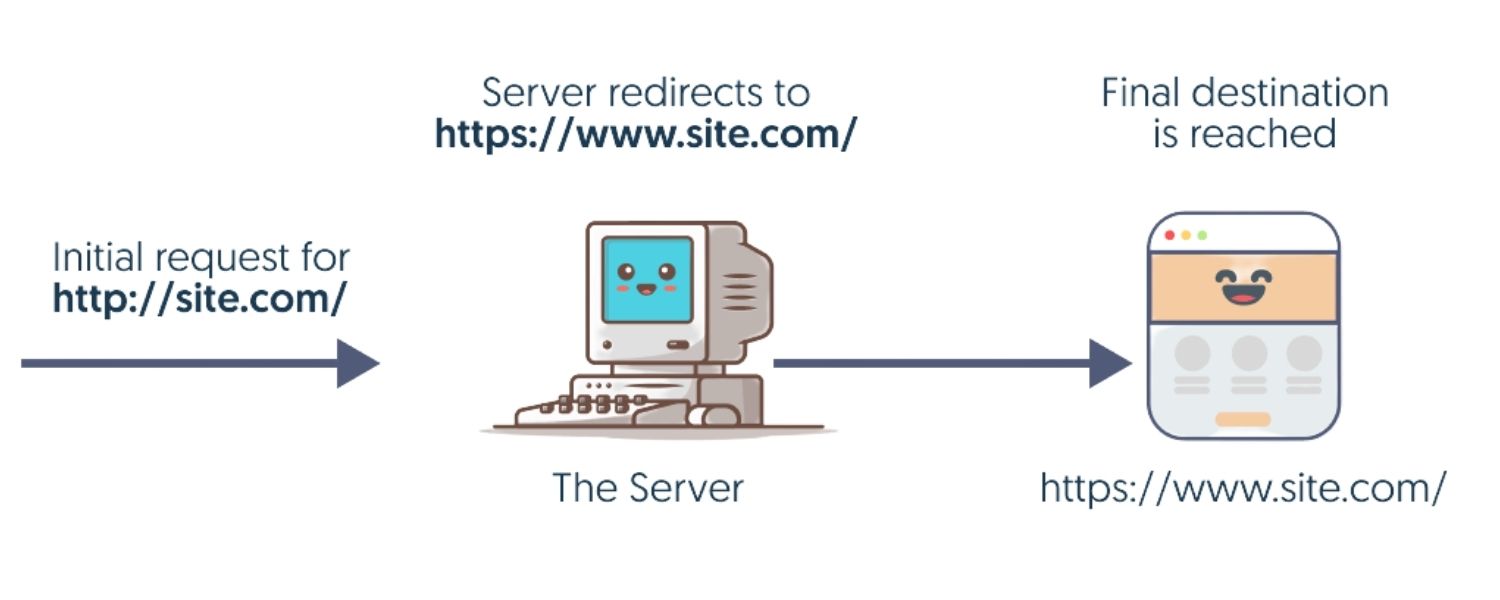
The most direct and efficient way to create a 301 redirect is on the web server level. This means editing your server’s configuration or instructions so that it issues a 301 for specific URLs. For example:
On Apache (common for many web hosts), you can add rules to a .htaccess file or the server config. A simple redirect rule might look like:
Redirect 301 /old-page.html /new-page.html
A. This instructs Apache to serve a 301 redirect from “/old-page.html” to “/new-page.html.” You can also use RewriteRule directives for more complex patterns (like redirecting a whole folder to a new folder).
B. On NGINX, you’d use a return 301 directive in your config for the old URL pattern, pointing to the new URL.
C. On IIS/Windows servers, you might use the web.config file or IIS Manager to set up URL rewrite rules with a 301 status.
Server-side redirects are powerful and fast because they don’t require any application code to run, the server just sends the new location immediately. If you have access and knowledge, it’s generally recommended to implement critical redirects at this level for performance.
However, editing server configuration can be sensitive; a small typo could bring down a site. So, if you’re not comfortable, seek a developer’s help. Always test after implementing (more on testing below).
2. Using Your CMS or Website Platform
Many content management systems have built-in support or extensions for managing redirects, which is user-friendly if you don’t want to edit server files directly. For example:
A. WordPress
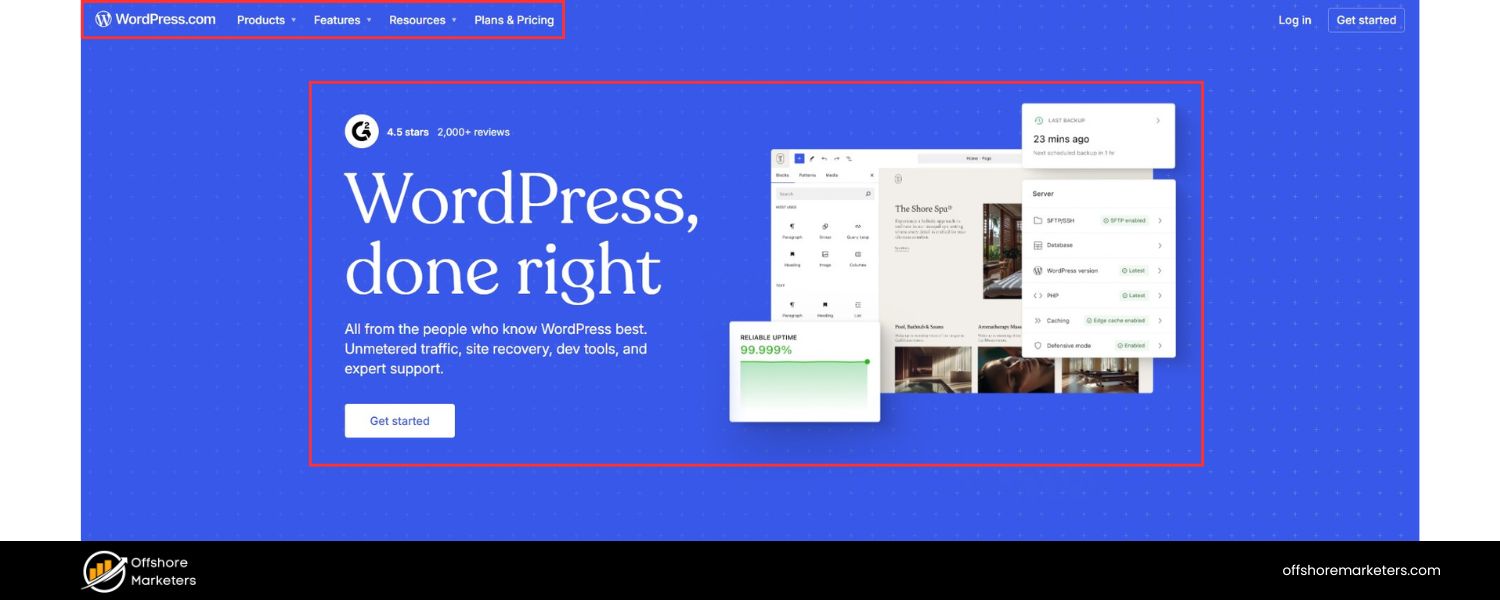
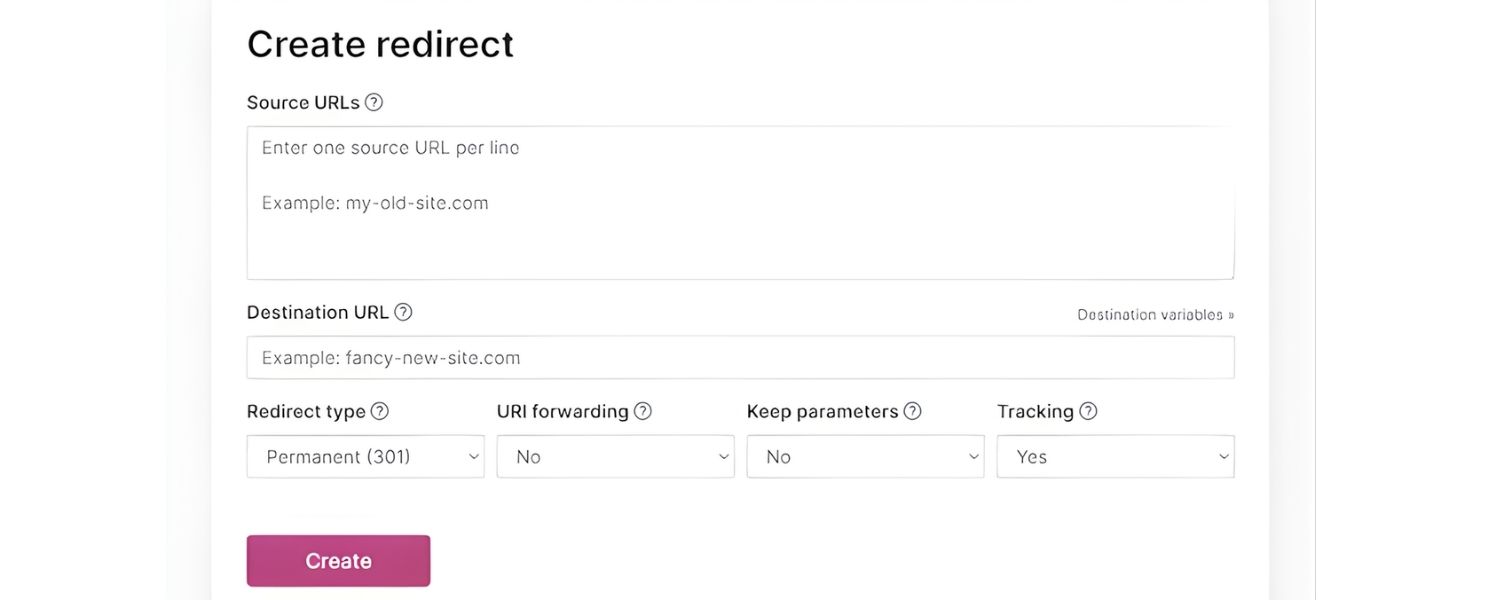
By default, WordPress doesn’t have a core redirect manager for arbitrary URLs. But you can install popular plugins like Redirection or an SEO plugin (Yoast SEO Premium, for instance) that provides a redirect manager. These plugins let you input the old URL and the new URL, select “301 – Permanent,” and save.
The plugin handles sending the correct headers. There are also specialized plugins like EPS 301 Redirects or Simple 301 Redirects that do exactly this. If you prefer not to use a plugin and are tech-savvy, you could also add redirect rules to your theme’s .htaccess (if using Apache) or use PHP in the template to issue a header, but plugins simplify the job and help monitor changes.
B. HubSpot CMS
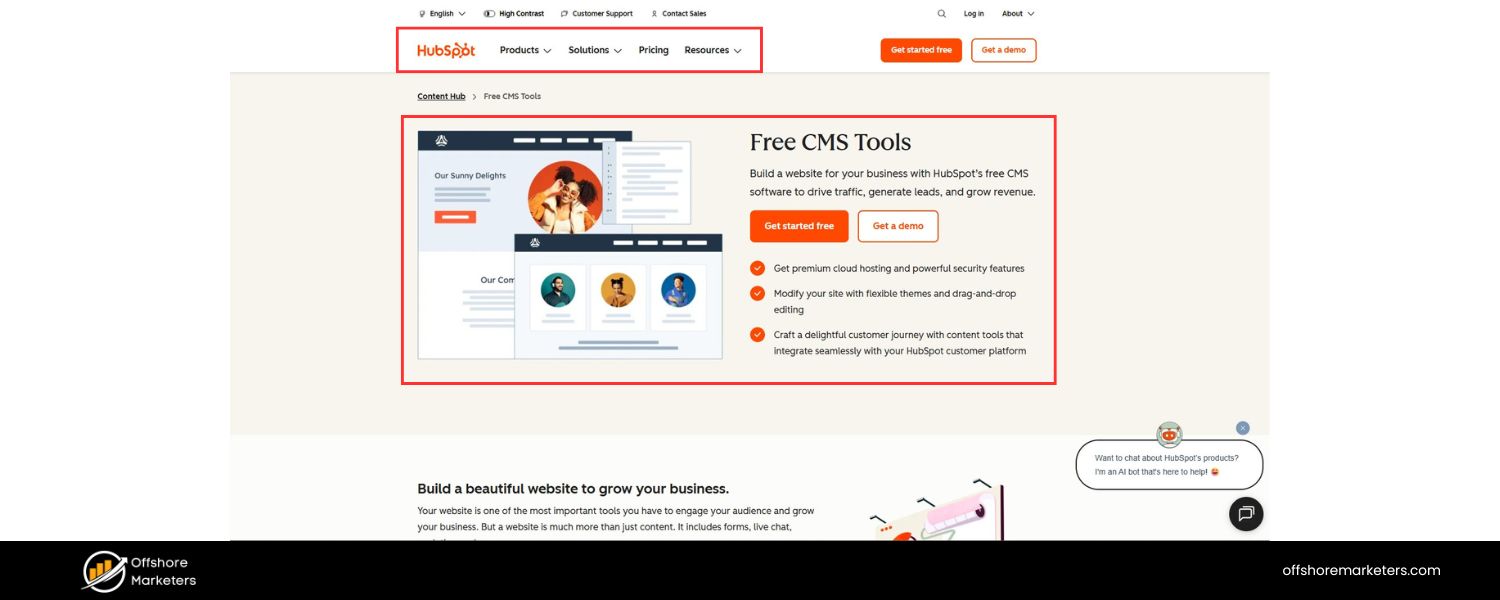
As an example of a hosted platform, HubSpot provides a built-in URL Redirects tool in its settings. You simply go to your domain settings, find the redirect options, and add a new redirect by specifying the original URL and the destination. HubSpot even offers different types (standard one-to-one, flexible pattern redirects, etc.) to cover bulk redirects.
C. Shopify

Has a native URL redirect feature in its admin (under Navigation or via an import if doing many).
D. Wix
Provides a URL Redirect Manager in the SEO settings where you can input old and new page addresses.
E. Squarespace, Joomla, Drupal, Webflow, and others

Most modern platforms either have built-in redirect management or well-supported extensions/modules. For instance, Drupal has a module called “Redirect” for this purpose, and Joomla offers redirect plugins.
F. Custom-coded sites
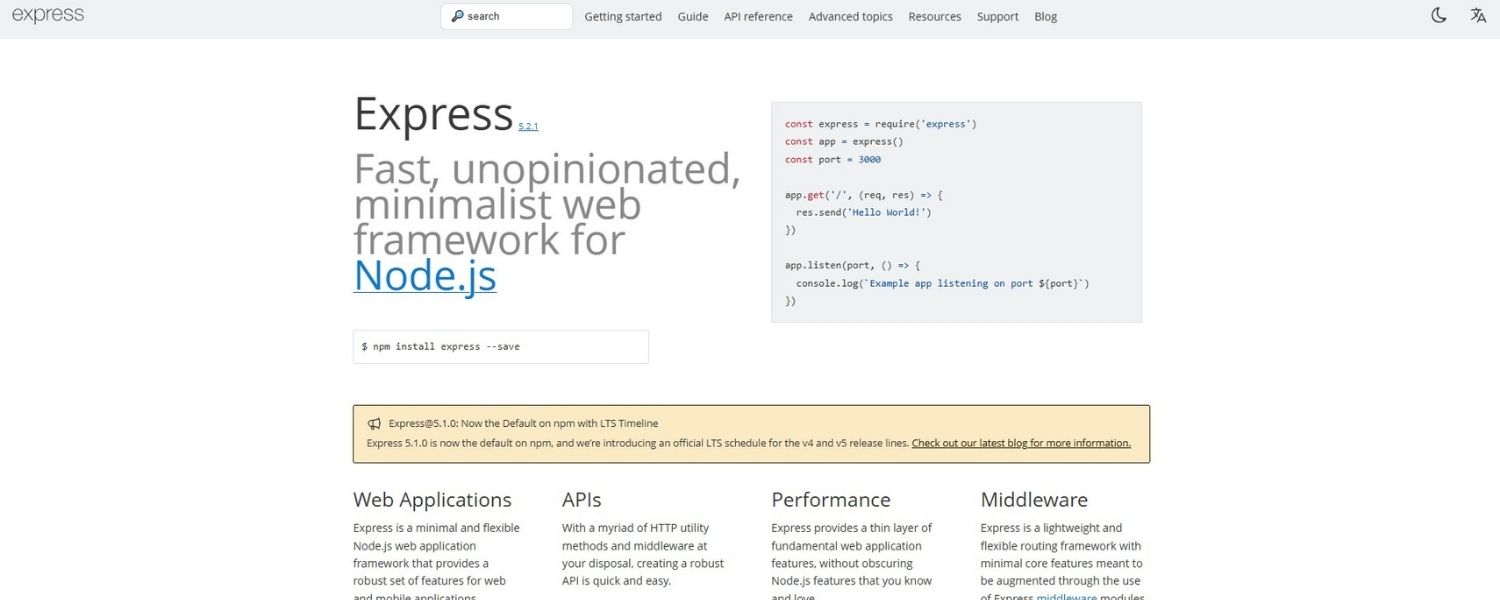
If your site is custom-built, you might implement redirects in the application code. For example, in an Express.js (Node) app, you could have middleware that checks for old URLs and responds with res.redirect(301, “newURL”). In PHP, you might call header(“Location: /new-page”, true, 301) at the top of an old page file.
These code-level redirects work but can be harder to maintain; usually, it’s easier to handle it at the server or via a config file unless you only have a couple of pages to redirect.
3. Use DNS/Registrar Forwarding (for Entire Domain moves)
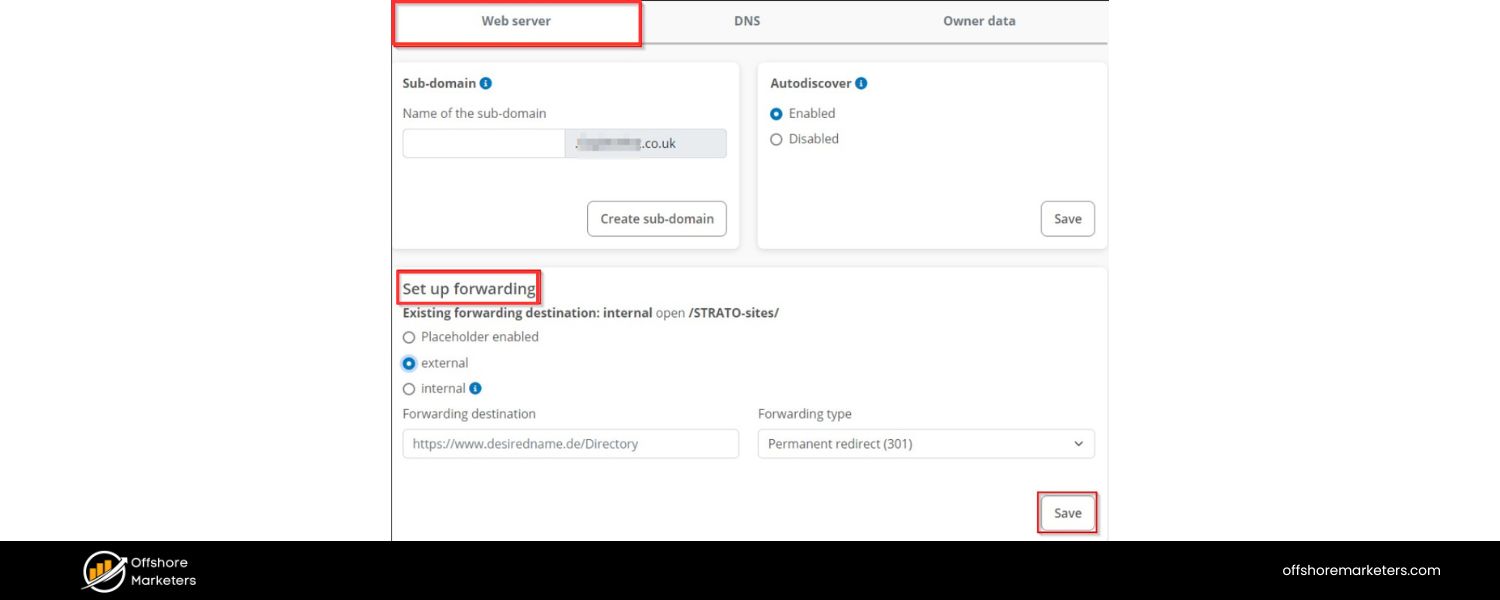
If you’re moving one domain to another entirely, some people use registrar or DNS-level forwarding. However, be cautious: DNS forwarding often results in a 302 (temporary) redirect by default, or it may not allow a page-level granularity (sometimes it just sends everything to the homepage of new domain).
It’s better to host the old domain and configure proper 301 redirects on the server side for each page to its new counterpart. If, for some reason, you cannot keep the old site up, then a wildcard redirect at the DNS level might be your only choice – but it’s not ideal for SEO, especially if it doesn’t return a 301. Whenever possible, serve the redirect from the original URL’s server.
4. Client-Side Redirects (last resort)
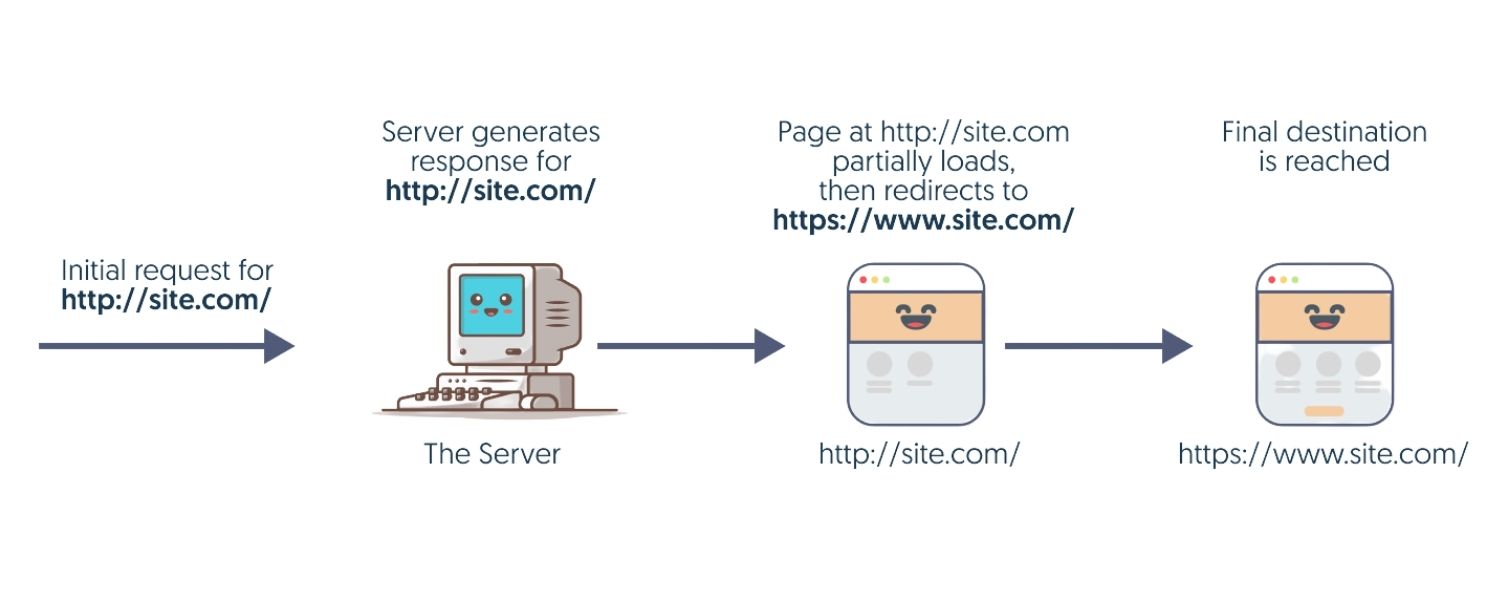
These include meta refresh tags and JavaScript redirects that execute in the browser. Generally, avoid client-side redirects for permanent site changes. They are slower and not as SEO-friendly. A meta refresh (e.g. an HTML <meta http-equiv=”refresh” content=”0;url=newpage.html”>) will eventually move the user, but it loads the page first and isn’t a clear 301 signal to crawlers.
Google can figure them out in many cases, but they’re not recommended except in edge cases. Similarly, a JavaScript window.location redirect depends on the user’s browser executing the script, search engine bots might or might not execute that JS reliably, and it adds complexity.
Use these only if you have absolutely no server or CMS option (which is rare). If you do use a meta refresh due to constraints, set a short timer (0-1 seconds) and understand it’s suboptimal for SEO.
5. Bulk Redirects
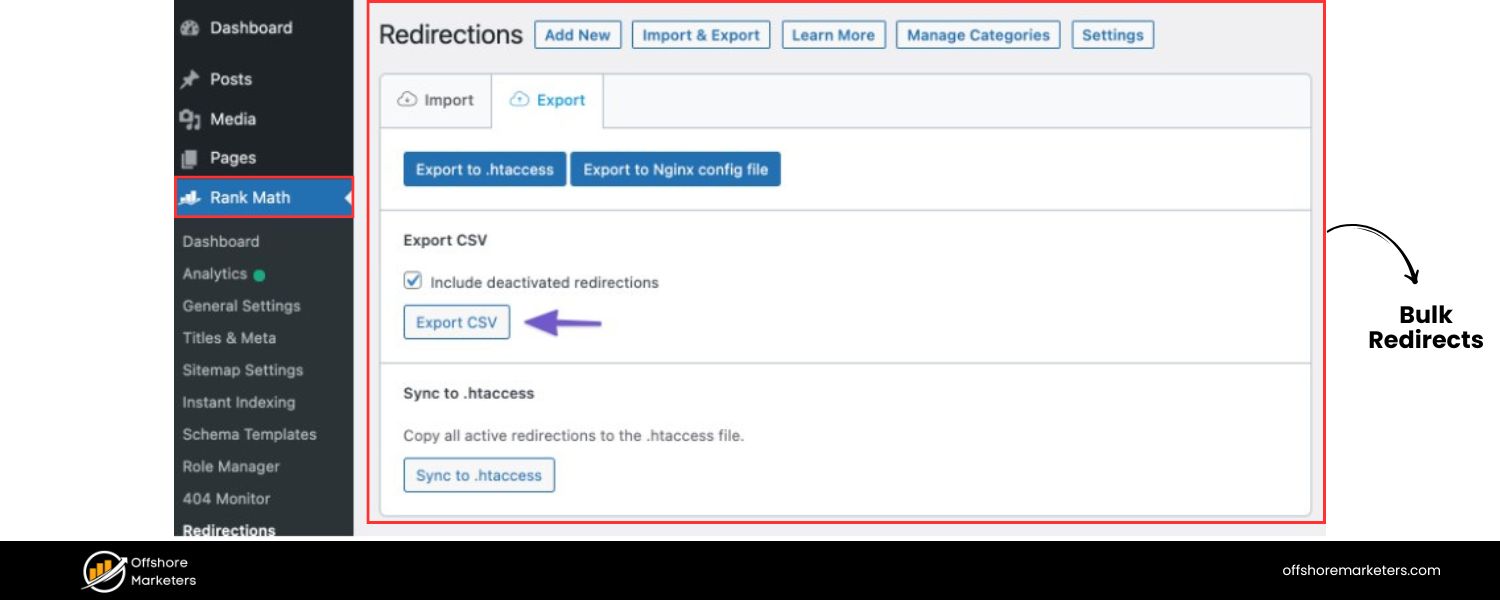
If you have dozens or hundreds of URLs to redirect (common in a full site migration or major cleanup), doing them one by one in a CMS interface can be tedious. In such cases, you might:
A. Write scriptable rules (like using wildcards or regex in .htaccess or server configs) to cover patterns. For example, redirect all URLs under /old-category/ to /new-category/ with a single rule.
B. Use import tools: Some CMS plugins allow you to upload a CSV of old->new URLs. For instance, WordPress Redirection plugin supports importing CSV, and HubSpot’s redirect tool allows bulk upload of a spreadsheet mapping old URLs to new ones.
C. If you’re not sure how to craft patterns, generating a spreadsheet and sharing with your developer or IT team can help them implement the redirects correctly. It’s wise to document every redirect in a sheet (old URL, new URL, type 301) for tracking and to avoid overlaps or omissions.
Regardless of method, always double-check that the 301s are working. After setting up a redirect, try visiting the old URL in a browser (and use an Incognito/Private window or clear cache to be sure you’re not seeing a cached result).
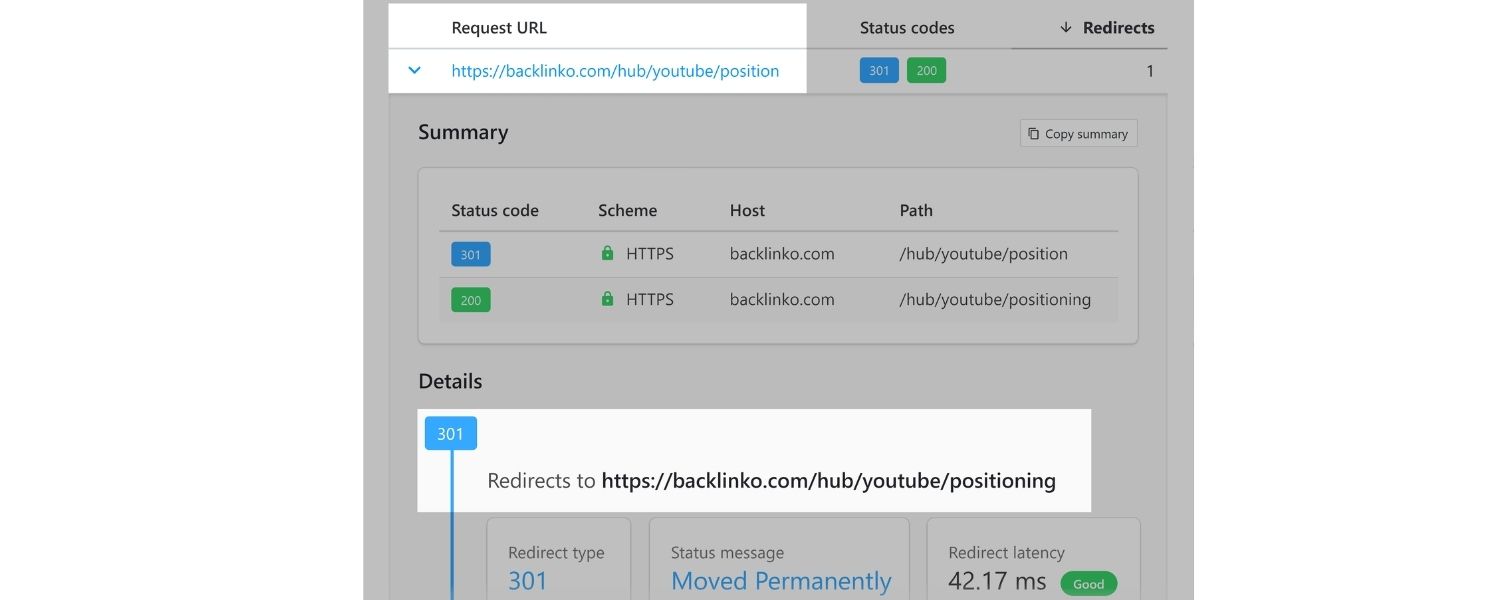
You should land on the new URL. You can also use tools or browser extensions (like Redirect Path by Ayima) to see the redirect chain and confirm it’s a 301 (not 302). Many CMS tools will explicitly label it as a “301 redirect” when you configure it, but verification is key, especially for mission-critical pages.
Best Practices for Using 301 Redirects
Implementing a 301 redirect is straightforward; doing it strategically requires some planning. Follow these best practices to get the most SEO benefit and avoid unintended issues:
1. Redirect to Relevant, Equivalent Content
Always point the old URL to the closest relevant page on your site. If you rename a page or move it, that exact page (just at a new URL) is the obvious target. If you removed a page and have new content that covers similar information, use that. Avoid the lazy approach of redirecting dozens of old pages to your homepage or a top-level page that isn’t related – that can confuse users and search engines.
In Google’s eyes, a redirect from a specific content page to an unrelated page (like a blog post -> home page) might be treated as a “soft 404” (basically, not a useful redirect). For users, it’s jarring: they clicked expecting one thing and got another.
For example, if “/dogs/training-tips” is gone, redirect to the new dog training article or category page, not to the homepage of a pet store. If no such relevant page exists, you might be better off letting it 404 than redirecting to something off-base.
2. Use One-to-One Redirects (Avoid Chains)
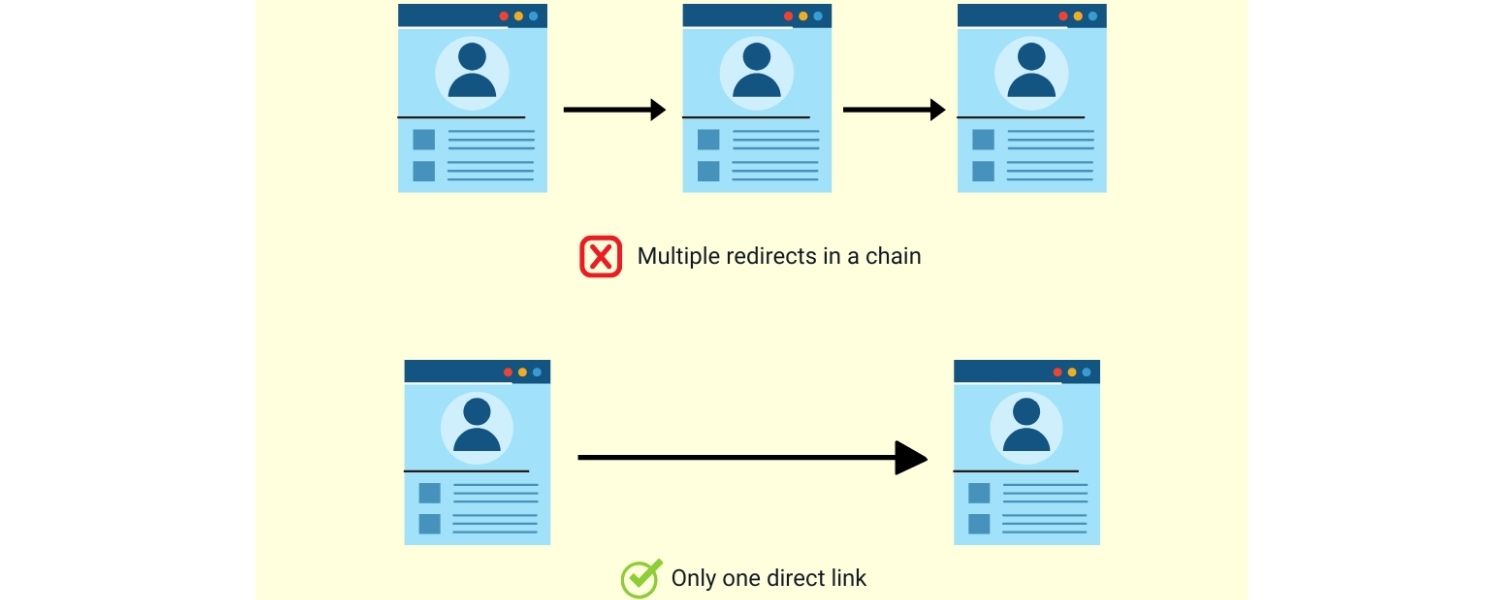
A redirect chain is when Page A -> Page B -> Page C, etc., with multiple hops before reaching the final destination. Each additional hop introduces more load time and more room for error. I
deally, you want a direct redirect from the old URL to the final URL in one step. Sometimes over years of site updates, chains accidentally happen (e.g., you redirected old URL to a new URL, then later changed the URL again with another redirect – now the first points to second which points to third). It’s good practice to periodically audit and eliminate chains by updating the first redirect to go straight to the final page.
Why? Multiple hops can slow down page loading for users and bots. Google has stated it will follow up to 5 hops in a redirect chain per crawl attempt, but beyond that it will stop and the destination might not be reached.
In fact, Google’s John Mueller recommends keeping chains under 5 hops total, and ideally much fewer, because each hop adds a bit of latency and complexity. Strive for as few redirects as possible – it’s cleaner for everyone. If you discover A->B->C chains, make A->C and eliminate B in between.
Tip:
Some SEO tools (or server logs) can help you find chains and loops (a loop is a chain that eventually points back to itself, definitely fix those immediately as they cause an infinite redirect scenario).
3. Update Internal Links
A 301 redirect will catch visitors coming from anywhere, including your own site’s navigation or content links. But relying on redirects for your internal links is not a good long-term strategy. It’s like having a forwarding address on file – it works, but it’s better to tell your friends your new address directly.
After changing URLs and setting up redirects, go through and update any links within your site (menus, footer, in-text hyperlinks, sitemaps, etc.) to point to the new URLs. This way, users and crawlers navigate the shortest path without bouncing through a redirect. It reduces unnecessary page load time and makes your site architecture cleaner.
Plus, it avoids the scenario of “redirect chains” developing internally if those pages move again. Essentially, use redirects as a safety net, but also do housekeeping by fixing the links you control (including links in your emails, social profiles, or marketing materials that you can still change).
4. Remove or Update Redirected URLs in Sitemaps and Navigation
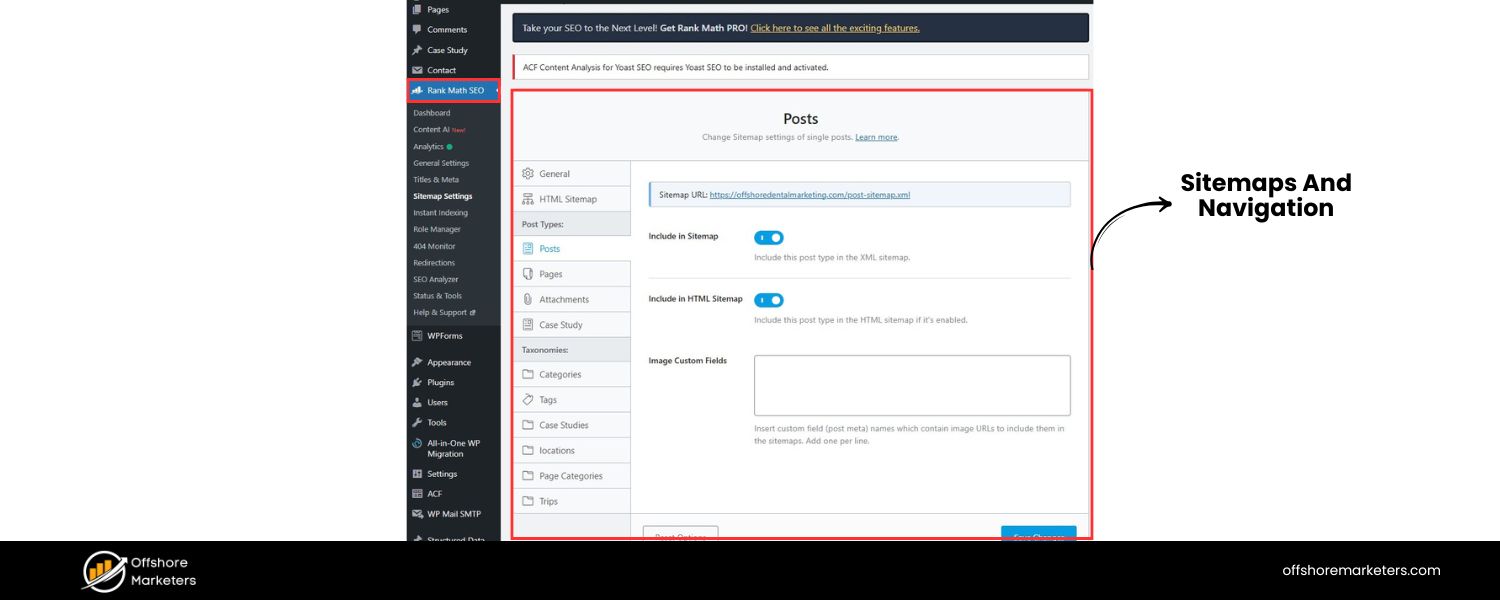
If a URL is in your XML sitemap and you’ve now redirected it, update the sitemap to list the new URL instead. Sitemaps should ideally only contain the current canonical URLs that you want indexed. Similarly, if an old page is linked in your top menu but now redirects to something else, update that menu link to the new page.
The goal is to send consistent signals. Having outdated URLs lingering in your sitemap or site menus can confuse crawlers, they see a URL in sitemap, fetch it, get redirected. It’s not the end of the world (Google will still follow it), but it’s better to be direct.
5. Keep Redirects in Place (Don’t Rush to Delete Them)
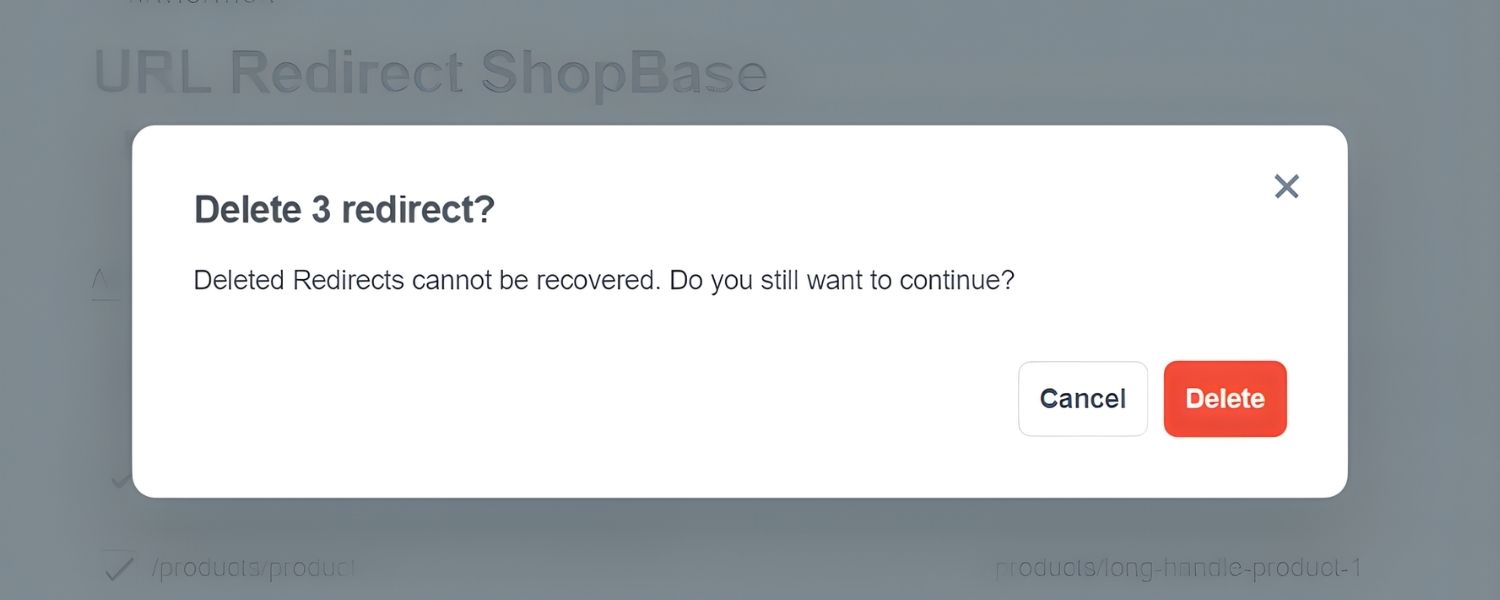
One common question is, “How long should I keep a 301 redirect?” The answer: a long time, usually at least a year, if not indefinitely, depending on the situation. Google’s documentation and experts indicate that you should keep 301 redirects live for at least 12 months in cases of site moves, to ensure Googlebot and users have plenty of time to see the redirect and update bookmarks.
In practice, if the old URL is gone forever, there’s little harm in leaving the redirect indefinitely (it’s a tiny file or rule). In particular, if external sites still have links to your old URL, you’ll want that redirect to stay in place permanently so those links don’t break. Removing a redirect too soon can re-expose a dead URL, and you’d lose the referral traffic and any late-coming search engine adjustments.
So err on the side of keeping them. That said, if you have a lot of legacy redirect rules, occasionally audit them. For example, if you redirect A -> B and later B is redirected to C, you can simplify or remove the redundant step. But never remove a redirect for an old URL that still gets traffic or backlinks.
6. Avoid Mixed Redirect Types
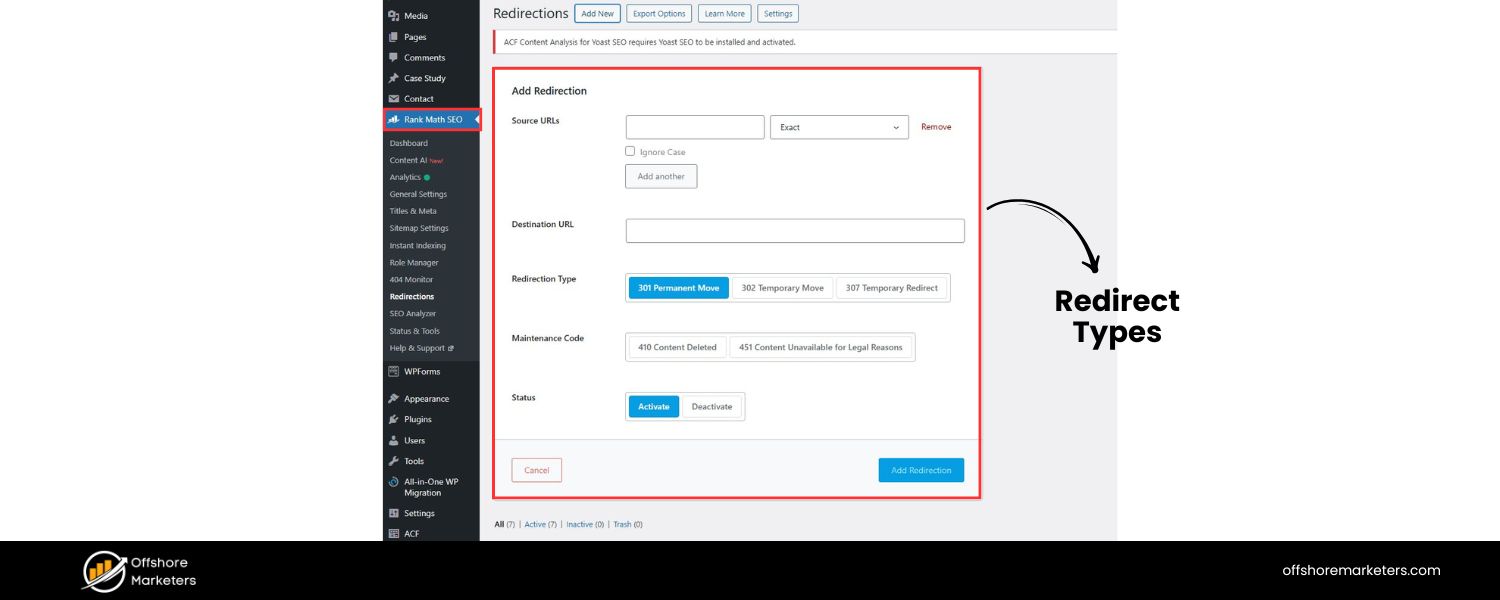
When possible, stick to one type of redirect (301) in a given path. For permanent moves, do not mix in 302s along the way. For example, don’t have A -> (302 to B) -> (301 to C). This creates ambiguity. Use 301 throughout for anything meant to be permanent.
(Temporary 302s have their place, which we’ll discuss in a moment, but not intermixed with your permanent redirect strategy). If you find old 302s that were meant to be permanent, switch them to 301. It’s a common oversight that someone set up a quick redirect and forgot to make it 301.
7. Plan Redirects During Site Changes
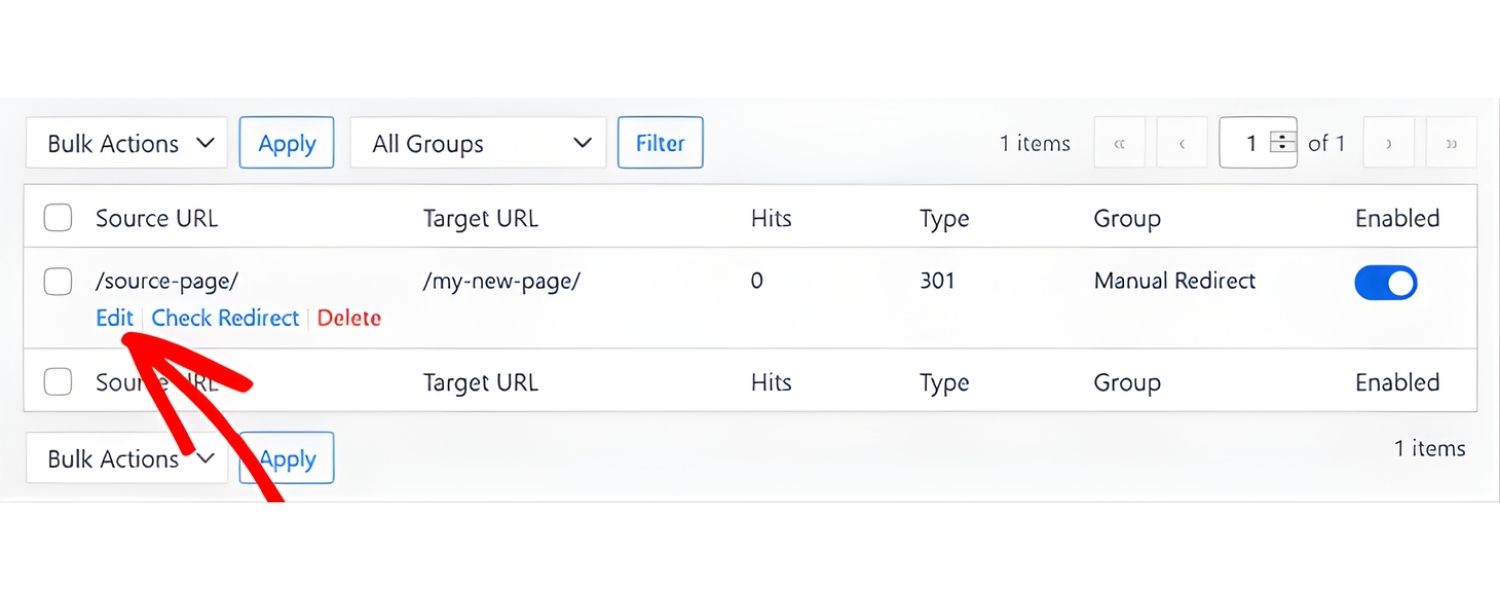
If you’re doing a large site overhaul or migration, plan your redirects in advance. It should be part of your launch checklist. Many SEO mishaps happen when a new site goes live and all the old URLs break because no one implemented redirects. To avoid this, create a mapping of old URLs to new URLs ahead of the launch.
Modern tooling can help: for instance, you can crawl your old site (using a tool like Screaming Frog) to get a list of all URLs, then map them to new ones in a spreadsheet. This makes it easier to ensure nothing is forgotten. Then implement those redirects either via batch import or config file updates as needed at the time of launch.
If you flip the switch without them, even a day or two of delay can cost you traffic. Timing is key – ideally the instant the new URLs go live, the old ones start redirecting to their counterparts.
8. Test, Test, Test
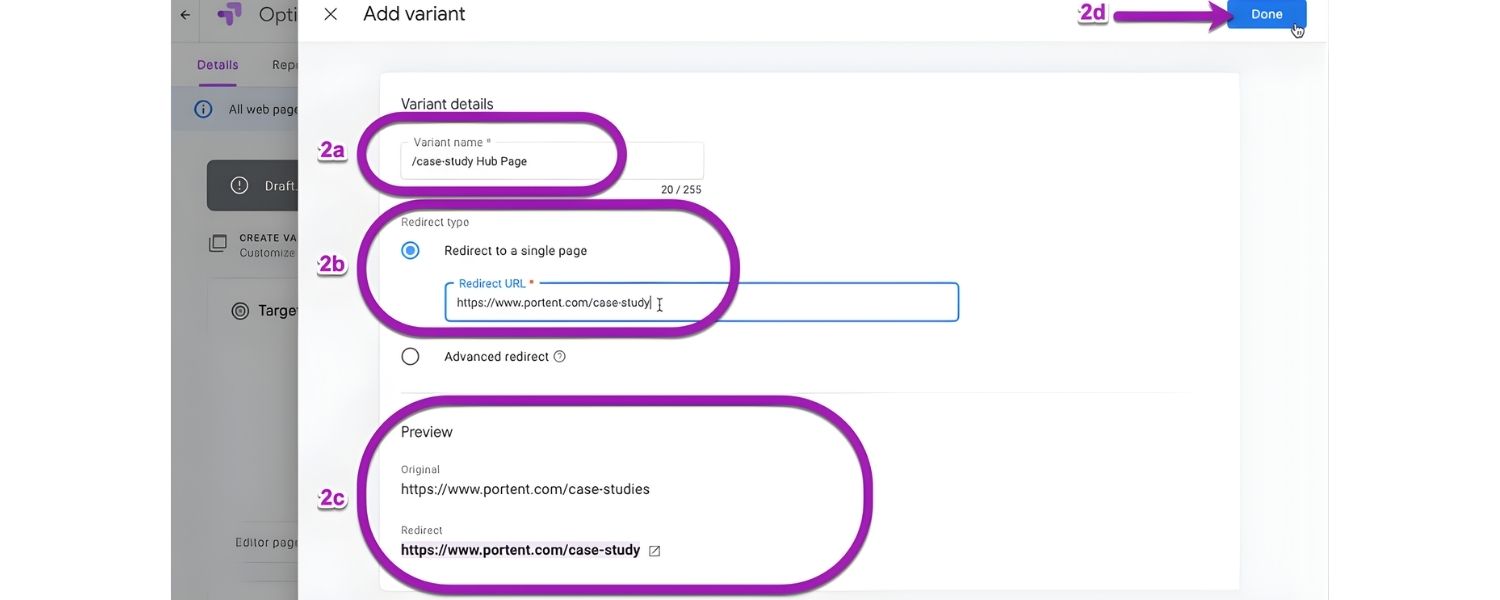
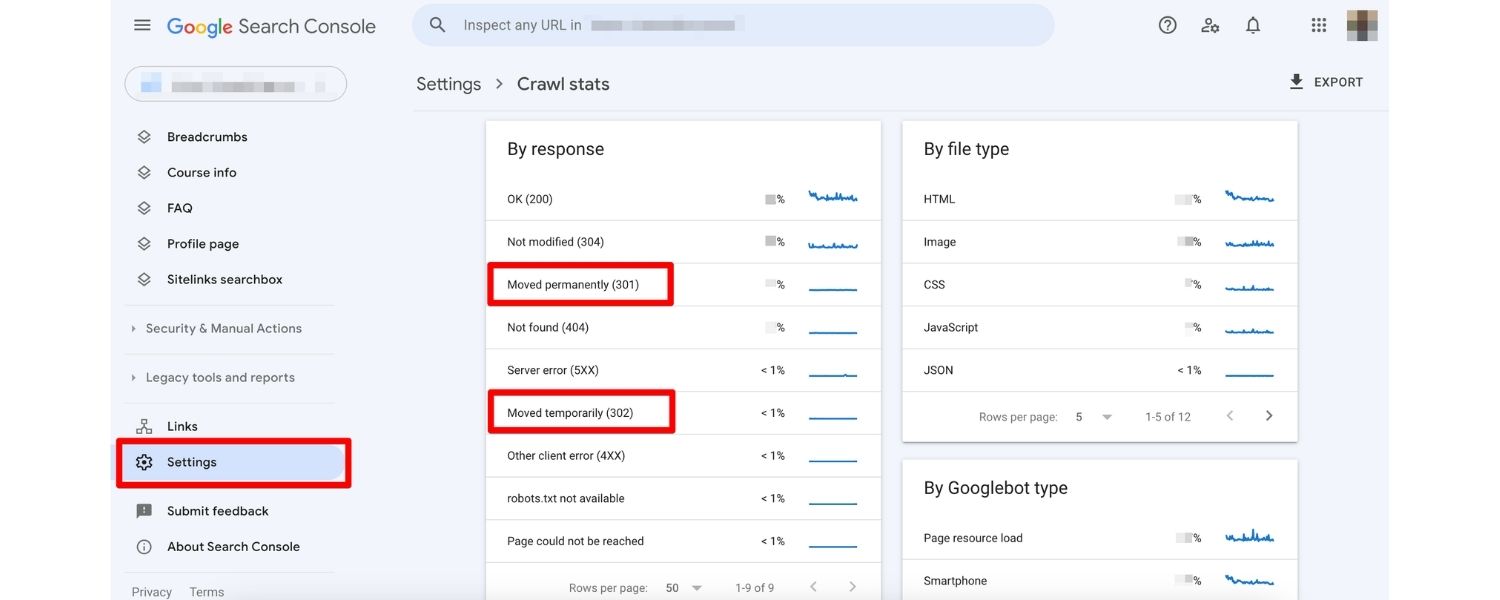
We mentioned testing a single redirect, but if you set up many, also consider broader testing. Use tools or online checkers to crawl for broken links or verify all redirects are functioning. Google Search Console is your friend too, after a migration, monitor the Coverage report and Redirect errors. Google might report if some redirects aren’t working or if some old URLs are still being requested and not found. You want to catch any oversight early.
9. Watch Out for Redirect Loops
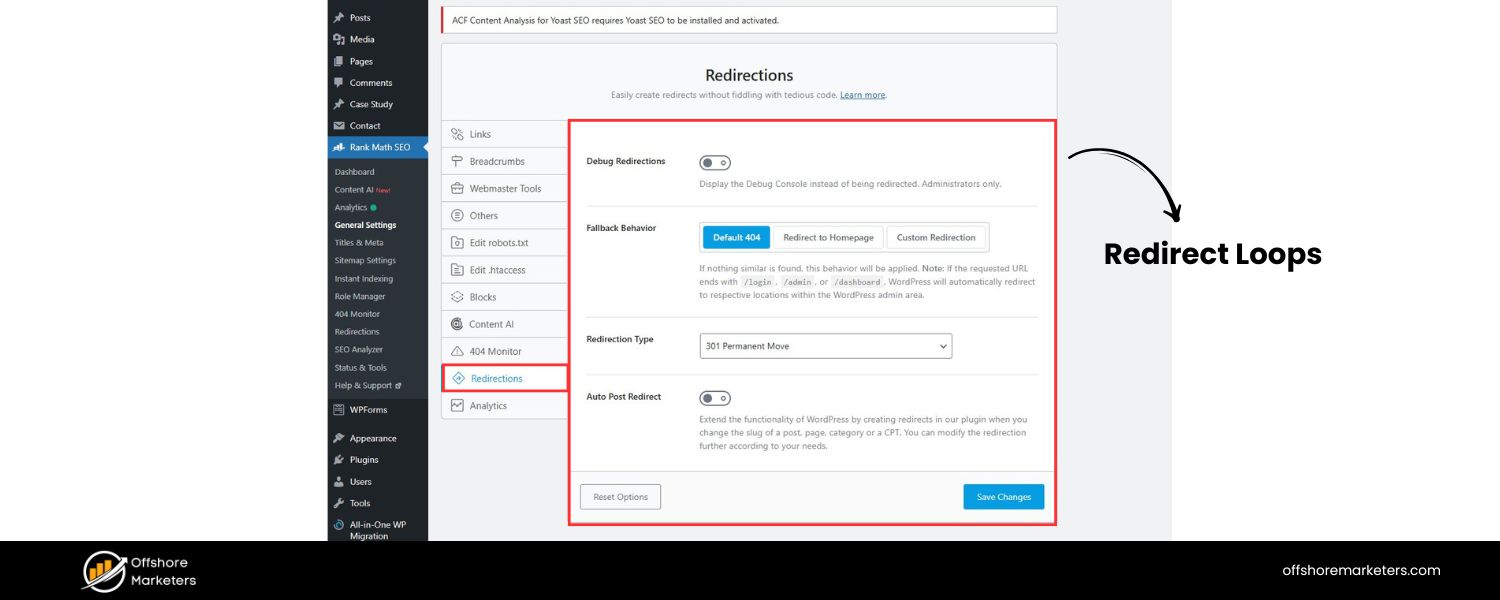
A redirect loop happens when URL A points to URL B, but somewhere down the line B (or C, etc.) points back to A. This can happen with poor .htaccess rules or when multiple people set up redirects without coordination. The result is an endless cycle that never resolves, browsers will typically give up and show an error like “too many redirects.”
Always ensure your redirect logic is acyclic. If using patterns, be careful that new URLs don’t accidentally fall under an old redirect pattern. This is another reason to document and test thoroughly.
By following these practices, you’ll ensure that your 301 redirects do their job – saving your SEO rankings and providing a smooth journey for users – without side effects. Now, let’s address a common point of confusion: when should you use a 301 versus a 302 (temporary) redirect?
301 vs. 302 Redirects (Permanent vs. Temporary)

It’s important to understand the difference between a 301 (permanent) and 302 (temporary) redirect, because using the wrong one can have SEO implications. As we’ve established, 301 means a URL has moved permanently and signals search engines to transfer all ranking signals to the new URL.
In contrast, a 302 redirect means “Found” (HTTP 302 is often interpreted as “temporary redirect”) – it tells browsers to go to the new address for now, but implies that this might not be a permanent change.
When to use 302
A 302 is appropriate if you intend to bring the old URL back or the redirect is just a short-term measure. For example:
A. You’re performing A/B testing or a promotion and temporarily redirecting traffic from one page to another just for a week or two.
B. You have a page that’s down for maintenance and want to send users to a different page in the meantime.
C. You’re rolling out a new website in phases (a “phased launch”). Perhaps some sections aren’t ready yet, so you 302 redirect those old pages to a holding page or the homepage during phase 1. Once those pages are ready in phase 2, you switch those redirects to 301 pointing to the new content.
D. Any scenario where you explicitly do not want search engines to treat the redirect as permanent. A 302 tells Google, “Hey, this move is not permanent, keep the old URL indexed.” In theory, Google will keep checking the original URL for content if a 302 is in place, expecting the redirect to be removed eventually.
Historically, search engines would not pass PageRank through a 302 because the content was expected to return to the original URL. These days, Google is smarter – if a 302 persists for a very long time, they may start treating it like a permanent move. But it’s still best to use the correct code for the situation to avoid any ambiguity. If you accidentally use 302 when you meant 301, Google might not consolidate the ranking signals, and the old URL could linger in results.
In SEO context
You generally want to use 301 redirects for site migrations, URL changes, and anything meant to be lasting, because that will transfer SEO strength. Use 302 only if you’re sure the change is temporary and you want the original URL to potentially come back (or you don’t want the new URL to be indexed long-term).
For example, some e-commerce sites use 302s for briefly out-of-stock products redirecting to a category page (so Google doesn’t drop the product page permanently). Another example is a login or routing redirect – say you have a url /login that redirects to an external authentication service and then comes back; those might be 302 because you don’t want /login to disappear from index (though usually those kinds of pages are not indexed anyway).
Other redirect codes: There are a few other HTTP redirect codes, though much less commonly used:
A. 307 Temporary Redirect
This is the HTTP 1.1 equivalent of 302, intended to preserve the request method. It’s rarely used in typical SEO scenarios. If you see it, treat it like a 302 in terms of purpose (temporary).
B. 308 Permanent Redirect
This is like a 301’s newer cousin (also preserves method like 307 does for 302). A 308 redirect is semantically permanent just like 301. For SEO purposes, Google has stated they treat 308 the same as 301. Most people still use 301 by convention, but you might encounter 308 in some frameworks.
C. Meta Refresh or JS
(Not true HTTP codes, but as discussed, these client-side redirects exist.) They should be avoided for SEO-heavy pages. Google can process them, but it’s suboptimal. They also can create a poor user experience (flashes of content before redirect, or the back button not working as expected, etc.).
Google’s John Mueller has noted they don’t recommend meta refresh for two reasons: user experience (the original page might still appear in history) and processing time (Google has to parse the page to find the redirect).
D. HTML links (a “crypto redirect”)
In a worst-case scenario where you cannot do any actual redirect, simply placing a visible link like “This page has moved, click here” is an absolute last resort (sometimes dubbed a “crypto redirect”). But users have to click it and search engines may or may not transfer signals. This is not ideal at all for SEO, so only use if you literally can’t issue a redirect code.
Bottom line:
Use 301 for practically all SEO-related redirects (site moves, content moves). Use 302/307 only for genuinely temporary situations or for things like multi-step processes (shopping cart flows, etc.) where you don’t want search engines to think content moved permanently.
If you mistakenly use 302 in a permanent scenario, correct it to 301 to ensure you get the SEO benefit. Misconfigured temporary redirects are a common error that can hurt your rankings because the “link juice” isn’t being passed on.
Common Mistakes to Avoid with 301 Redirects
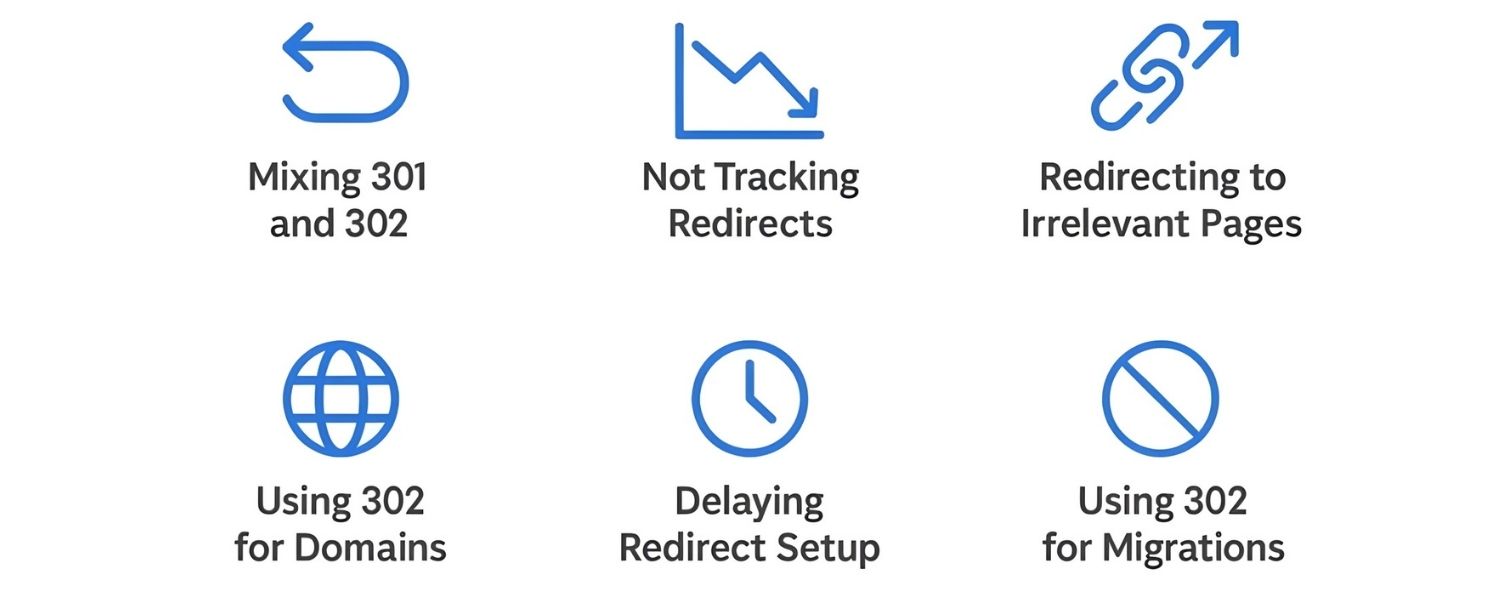
Even though setting up a 301 redirect is conceptually simple, there are several pitfalls that site owners and marketers should watch out for. Avoiding these mistakes will ensure your redirects truly help rather than harm your site’s performance:
1. Using 302 (Temporary) Redirects for Permanent Changes
As emphasized, one of the biggest mistakes is implementing a 302 when you meant to do a 301. This often happens out of oversight (some tools default to 302, or a dev might quickly add a 302). The result can be that search engines don’t pass on ranking signals to the new URL, thinking the move might not be permanent.
Always double-check that your redirects are set as 301 for any permanent site moves. For example, if you’re redirecting non-www to www or moving to HTTPS, ensure those are 301s – sometimes people accidentally leave them as 302 and wonder why the new URLs aren’t ranking as expected.
As a rule: different versions of your site (http vs https, old vs new domain) should be linked by 301s, not 302s. Fortunately, this is an easy fix once spotted.
2. Not Setting Up Redirects Before a Launch or Migration
Timing is critical. If you launch a new site (especially on a new domain) without 301 redirects in place, you might temporarily (or permanently) lose traffic. The story of Toys “R” Us and toys.com mentioned earlier is a classic example – they effectively relaunched on a new domain with no redirects and lost almost all their Google rankings overnight.
Always have your redirect plan ready before making URL changes public. Ideally, deploy the redirects simultaneously with the new URLs. If you purchase a new domain and plan to switch, consider putting up redirects on day one of the switch. Delaying this step can mean search engine crawlers find your new site as a separate entity with no relation to the old one, which can be catastrophic for SEO.
3. Redirecting to Irrelevant or Outdated Content
Each redirect should honor the user’s original intent. If someone was looking for Page A, and you redirect them to Page B, Page B should be as close a substitute as possible. One mistake is redirecting all old pages to the homepage or a generic page, even when more specific alternatives exist.
For example, if you discontinue a product page, don’t just send everyone to the homepage, that’s confusing and not helpful. It can also look spammy to Google if overused (they might see it as a soft error or an attempt to catch traffic deceptively).
Another angle: sometimes site owners leave old content up and then later redirect it to something unrelated just to “capture traffic”. This might do more harm than good if users bounce because it wasn’t what they wanted.
Solution: always choose the redirect target thoughtfully. If no good target exists, you might decide a 404 with a custom message is more honest. Or, better yet, create a new page that serves the need if you find there’s demand (e.g., lots of hits to a retired page).
4. Creating Redirect Chains and Loops
As covered, chains (A->B->C->D) and loops (A->B->C->A) are technical mistakes to avoid. They often happen unintentionally, but it’s important to audit for them especially after multiple site updates. A loop will trap both users and crawlers in an endless cycle (a terrible experience and your page won’t load at all).
A long chain might eventually work, but it will slow down loading and some crawlers might give up after a few hops. The more hops, the greater the risk of something failing (perhaps one of the intermediate URLs has an error).
To avoid this: whenever you add new redirects, consider if they overlap with or replace older ones. It’s good practice to periodically do a crawl of your site (or run it through a redirect checker tool) to catch any chain over 2 hops. If you find any, consolidate them to a single 301 hop.
5. Forgetting to Update Internal References
We touched on this in best practices, but it’s worth reiterating as a common oversight. Suppose you moved page A to page B and set a 301. If page A was linked from your homepage, and you don’t update that link, users clicking it will still go through the redirect.
This might seem harmless (it does land them on B after all), but it’s unnecessary and slightly slower. Moreover, if down the line something happens to the redirect, that link becomes broken.
It’s cleaner to update all your nav and in-content links to point directly to B. A typical mistake is launching a new site version and forgetting to update some templates or hard-coded links, causing a bunch of internal redirects. Do a link audit on your own site to fix those; it’s usually straightforward and improves site quality.
6. Removing Redirects Too Soon
Site owners sometimes ask, “Can I delete the old redirect now? It’s been a few months.” Maybe they’re cleaning up .htaccess or think it’s no longer needed. Removing a redirect effectively makes the old URL dead again. If Google hasn’t fully transferred everything or some user still goes to that old URL, they’ll hit a 404.
We advise keeping them as long as possible, but a mistake is definitely removing them prematurely. As noted, at least a year is recommended. Only consider removing if you are absolutely sure no significant traffic will ever come through that old URL and it’s not indexed. Even then, having it doesn’t hurt unless there’s a pressing reason (like the old domain is expiring or you need to repurpose that URL for something else).
7. Neglecting to Implement on the Old Domain (in domain migrations)
If you change domains, it’s imperative that the 301 redirects are served from the old domain’s side. A mistake is to assume just setting up the new site is enough. You actually need to have the old domain still operational (even if just a minimal hosting) to catch all requests and redirect them to the new domain.
Some people switch DNS to point to the new site and forget about the old – if the old domain isn’t configured to deliver redirects, users hitting olddomain.com will see nothing. Work with your host to ensure the old domain is either parked with redirect rules or pointed to the new host which knows to redirect. This is a technical detail, but a crucial one for domain changes.
8. Using Redirects when a Canonical or Other Solution is Better
Not exactly a mistake, but sometimes webmasters go “redirect crazy” when they could use a less drastic measure. For example, say you have two very similar pages and you worry about duplicate content – some might jump to redirect one to the other. If both pages serve a purpose, a canonical tag might suffice to tell Google which one to index, without actually moving users around.
Or if you have a printer-friendly page and a regular page, you might use canonical tags instead of redirects, so users can still access both versions. Use 301s for true moves; don’t use them just to try to boost one page’s ranking at the expense of user choice, unless combining pages is actually the best user experience.
Another case: it’s usually better to fix an internal link than to rely on a redirect to correct a minor typo in a URL somewhere. Redirects add a tiny performance cost; they’re not huge, but it’s cleaner to not need them internally.
9. Not Monitoring Post-Redirect Performance
After implementing a bunch of redirects, don’t just “set and forget.” Monitor your analytics and Google Search Console. Check that traffic levels remained stable (a big drop might indicate something’s off, like a broken redirect or a missed URL).
In Search Console, watch for crawl errors – are any old URLs still being reported as not found? If yes, you might have missed setting up a redirect for those. Also check the index coverage to see if Google is indexing the new URLs and dropping the old ones. Typically, after a 301, the old URL will eventually disappear from the index in favor of the new one.
If months have passed and old ones still show as indexed (or worse, the new ones aren’t indexed), something may be wrong (like the redirects weren’t configured correctly or were nofollow or something odd). This kind of monitoring can catch issues early so you can address them.
By steering clear of these common errors, you’ll ensure your 301 redirects work as intended: preserving SEO equity, guiding users correctly, and not causing any unexpected SEO hurdles.
FAQs About 301 Redirects
Q: Do 301 redirects hurt my SEO or page rankings?
No – in fact, a properly implemented 301 redirect protects your SEO rankings rather than hurting them. In the past, SEO practitioners worried about a small “PageRank loss” through a redirect, but Google has clarified that 301 redirects do not cause a loss in PageRank or authority nowadays. All else being equal, your new page should rank just as well as the old page did, assuming the content is the same and the redirect is correctly set.
The slight caveat: there can be a short-term fluctuation when a redirect is first put in place, as search engines update their index. It’s not uncommon to see the new URL drop briefly then rebound as the signals transfer. But long-term, a 301 is the best way to change URLs without sacrificing hard-won SEO performance. The alternative (not redirecting) would definitely hurt, as you’d lose rankings once the old page is gone.
Q: How long does it take for Google to process a 301 redirect?
It can vary. Googlebot will typically discover the redirect the next time it crawls the old URL. If that page was crawled frequently (say daily or weekly), Google will see the redirect quickly. After seeing a 301, Google usually starts indexing the new URL and will eventually drop the old URL from its search results in favor of the new one.
This could happen in days or a few weeks, depending on crawl frequency and the site’s authority. Google themselves suggest keeping redirects up for at least a year to ensure all users and bots have seen it. But often the bulk of the SEO transition happens within a month or two. To speed things up, you can use tools like Google Search Console’s URL Inspection and Submit to Index for some key URLs, or submit an updated sitemap with the new URLs. Those actions can prompt faster crawling.
It’s also a good idea to leave the old sitemap or a list of old URLs accessible (or in Search Console) for a while so Google can systematically see they all redirect. In summary: some patience is needed, but as long as the 301s are in place, you’re communicating the change. Monitor your search impressions – you’ll likely see the new URLs gaining traction as the old drop off.
Q: Can I have too many 301 redirects on my site?
There’s no set “limit” to the number of 301 redirects a site can have, and having many doesn’t directly hurt your site’s SEO. Large sites may have hundreds or thousands of redirects (think of big news sites that constantly move and archive articles). The key is managing them well. However, if you find yourself adding redirects excessively, consider if there’s an underlying issue.
For example, if you constantly change URLs, maybe adopt a more stable URL strategy. Or if you have lots of outdated pages, maybe a better content strategy is needed. But technically, Google can handle quite a lot of redirects. Just ensure they don’t chain (as discussed) and that your server can handle the extra lookup.
From a user perspective, each redirect adds a tiny delay, so minimize them on critical user-flow paths. But 301s are normal part of the web – even Google uses them when they rebrand or merge content.
Q: What’s the difference between a 301 redirect and a canonical link tag?
This is a common point of confusion. A 301 redirect physically forwards a user (and crawler) from one URL to another. The old URL becomes essentially inaccessible (it immediately goes to the new page). A canonical tag (a snippet of HTML in the page’s <head>) is a signal to search engines that a page is just a duplicate or alternate version, and it points to the preferred “canonical” URL. Users are not redirected; it’s only a hint for search indexing.
You would use a canonical tag when you have duplicate content that you want consolidated in search results, but you still need the alternate page accessible (for instance, printer-friendly pages, or tracking URLs with parameters).
Use a 301 redirect when you don’t need the old page accessible at all and want everyone to use the new page. Sometimes after using a 301, people also leave a canonical tag on the new page pointing to itself (which is fine, but not strictly necessary if only one page exists). Remember: canonical is advisory and only for search engines; 301 is imperative and for both users and search engines. They solve similar problems (duplicate content, SEO consolidation) but in different ways.
Q: Are 301 redirects the right way to handle content that moves frequently?
If you have content that is regularly moving around or changing URLs, it’s worth questioning the strategy. Ideally, URL changes should be infrequent – URLs can often stay constant even if you update the content on the page. But if you do need to move content frequently, 301s will still do the job.
Just manage them to avoid chains. In some cases, if content moves seasonally (like a yearly event page that changes URL each year), another approach might be to use one stable URL and simply update the content, or use a 302 if you plan to revert later.
But if the move is permanent each time (i.e. last year’s page is archived and new year gets a new URL), then yes, 301 each time and perhaps have an index page that links to current content might be a cleaner solution.
Q: What happens if someone requests a page that has been redirected, and then I remove the redirect after a year or two?
If you remove a 301 redirect down the line, any new requests to the old URL will result in whatever default behavior the server does (likely a 404 Not Found, since that content is gone).
Search engines by that time likely have dropped the old URL from the index (because of the 301) and only index the new one. So in Google’s index, the old URL probably won’t appear anyway. Users clicking Google results will see the new URL. The danger is if users had the old page bookmarked or some external link never got updated – those would break once you remove the redirect.
Browsers that cached the 301 might automatically go to the new URL for some time, but that cache can expire or be cleared. In short, removing a redirect can re-expose a broken link. That’s why it’s recommended to keep them indefinitely unless you have a strong reason to remove.
If you must remove it (say the old domain is expiring or you want to reuse that URL path for something else), understand you might lose some referral traffic from old links and you should do so only after a long period and low usage of that old address.
Conclusion & Next Steps
In the ever-changing landscape of websites, whether you’re redesigning pages, updating your site structure, or migrating to a shiny new domain, 301 redirects are your best friend. They are the unsung heroes that tie your past to your future, ensuring both users and search engines seamlessly follow your content to its new home. By implementing 301s correctly, you preserve SEO equity, avoid traffic loss, and provide a smooth user experience as your site evolves.
The key takeaways from this guide are simple: plan ahead, use 301 redirects for any permanent URL changes, stick to best practices (one-to-one mappings, no chains, relevant targets), and always double-check your work.
Don’t leave your old links hanging, take action and set up those redirects whenever you revamp your site. The benefits in terms of retained search rankings and user satisfaction are well worth the effort. If you’re unsure how to execute a complex site migration with hundreds of URLs, consider consulting with SEO professionals or developers who have experience in this area. A little expertise can save you from costly mistakes.
Now that you’re equipped with the knowledge of 301 redirects, it’s time to put it into practice. Audit your website: do you have any broken URLs or outdated pages that need redirecting? Any duplicate URL issues that a 301 could solve? Address those now to strengthen your site. And whenever you plan your next site update, make 301 redirects a part of the project checklist.
By respecting your users (never leading them into dead-ends) and respecting search engine guidelines (clearly signaling content moves), you build a robust, user-friendly, and search-friendly web presence. In the end, effective use of 301 redirects is a mark of a well-maintained website. So go ahead, keep your website’s “mail” flowing to the right address, and enjoy the benefits of retained SEO power and happy visitors!

Why Roseville Startups are Choosing Offshore Marketers to Scale Smarter
Roseville is no longer just a quiet suburb of Sacramento;...

What Is PPC? A Practical Guide to Pay‑Per‑Click Advertising
Pay‑per‑click (PPC) is the “pay only when someone clicks” branch...

Google Search Issues Affecting Results in Some Regions
Google has confirmed a problem with one of its data...

Keyword Counts Dropped After Google’s num=100 Change
In September 2025, Google stopped supporting the &num=100 parameter. This...

Image SEO: Optimize Images for Higher Rankings & Traffic
Introduction Images make your website more engaging, but they can...


.png)
.png)
.png)
.png)
.png)

2024 ALL RIGHTS RESERVED MADE IN INDIA
.png)