
400 Bad Request Error: Meaning, Causes, and How to Fix It
September 17, 2025
Introduction
In my 25 years of experience in web development and digital marketing, I’ve seen how frustrating it is for users and site owners to come across a cryptic “400 Bad Request” error. This common HTTP error can catch you off guard, one moment your webpage was loading fine, and the next you’re staring at a blank page or an error message.
Don’t worry, this guide will explain exactly what a 400 Bad Request error means and walk you through how to fix it. We’ll also delve into why it happens, how to prevent it, and when to seek professional help if it persists. By the end, you’ll be fully equipped to tackle 400 errors and keep your website running smoothly.
What Is a 400 Bad Request Error?

A 400 Bad Request is an HTTP status code that indicates the server cannot process the request because of a client-side error in the request. In simple terms, the server received something from your browser (the “client”) that it didn’t understand or found invalid. Instead of delivering the webpage, the server responds with a 400 status and usually the message “Bad Request.”
This error is part of the 4xx class of HTTP responses, which are all client-side errors. A 400 error does not mean the website itself is down (that would be a 5xx server error); it specifically means there’s something incorrect about the request you sent.
For example, you might see wording like “Your browser sent a request that this server could not understand” on some 400 error pages – hinting that the problem lies in the request syntax or data.
Key points about the 400 Bad Request error:
1. It’s a client error
The assumption is that the mistake is on the client side (your browser, your device, or the request itself), not a fundamental server crash. The server simply couldn’t understand the request and therefore couldn’t proceed.
2. Repeating the exact same request will likely fail again
Unless something changes, the server will keep returning a 400 for the same bad request. In other words, you need to modify the request or fix the underlying issue before retrying.
3. It can happen on any browser or device
All web servers use HTTP status codes. Whether you’re on Chrome, Firefox, Safari, or Edge, a 400 Bad Request looks similar (often just plain text saying “400 Bad Request”). Some browsers show a completely blank page with just the error title, which isn’t very helpful. But under the hood, it’s the same issue.
In summary, a 400 error means the server got your request but rejected it as invalid or malformed. Now, let’s explore why that might happen.
Common Causes of 400 Bad Request Errors
There are several reasons you might encounter a 400 Bad Request error. Understanding these common causes will help you identify and fix the problem faster:
1. Malformed URL or Query String
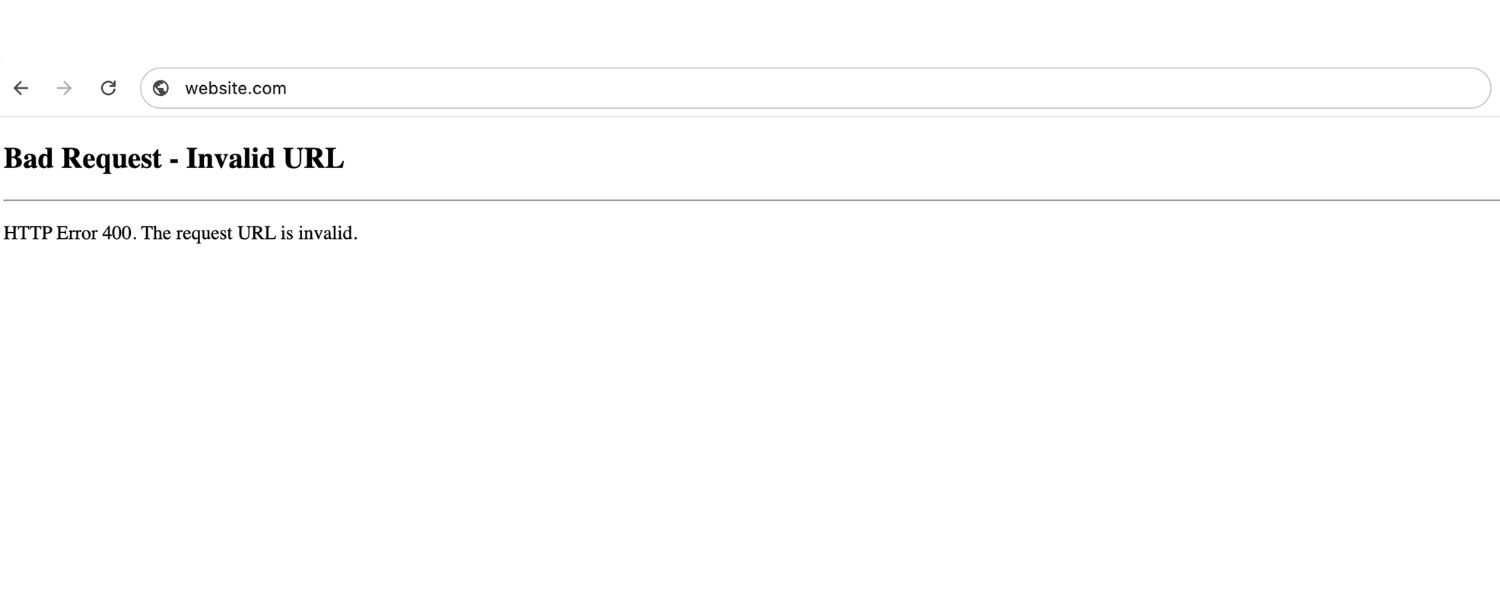
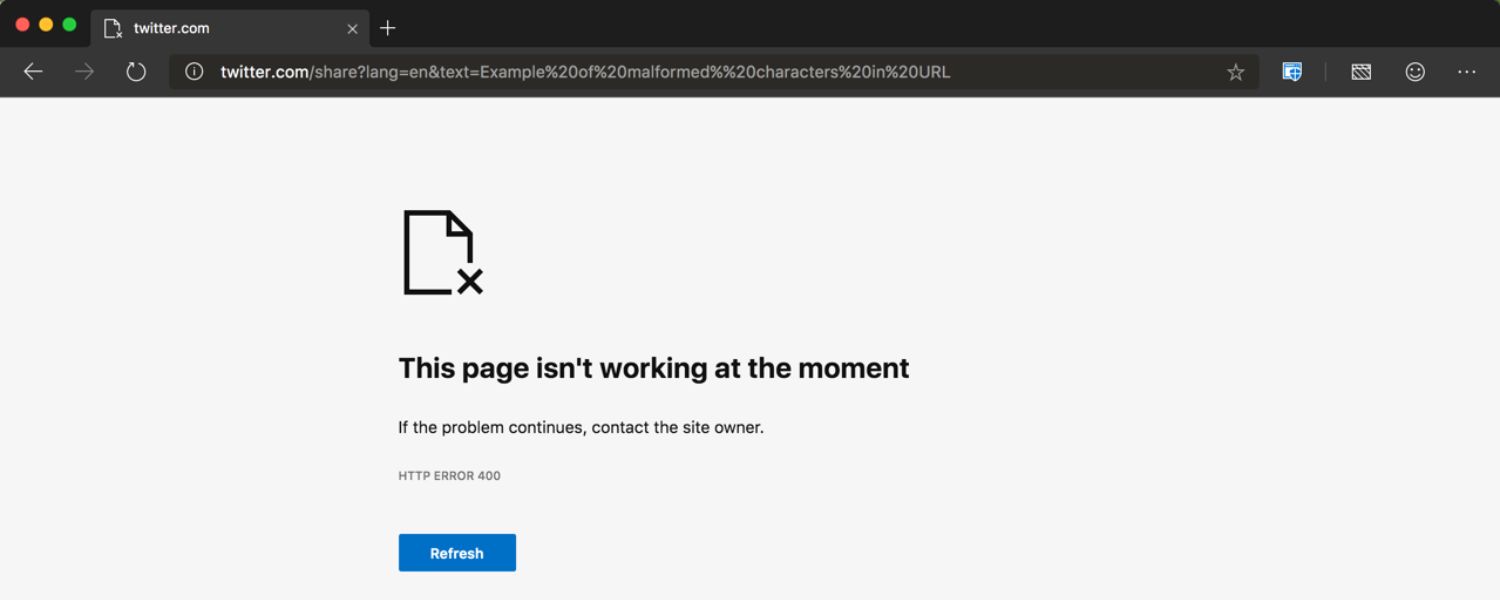
One of the most frequent culprits is a typo or illegal character in the URL. For instance, special characters like spaces or { } that aren’t properly encoded will cause the server to choke on the request.
A URL must follow a specific format – if it contains disallowed characters or is incomplete, you may get a 400 error. Even having an unescaped % or certain symbols in the path can trigger a Bad Request. Essentially, a mistyped web address or corrupted link can lead to this error.
2. Oversized or Corrupted Cookies
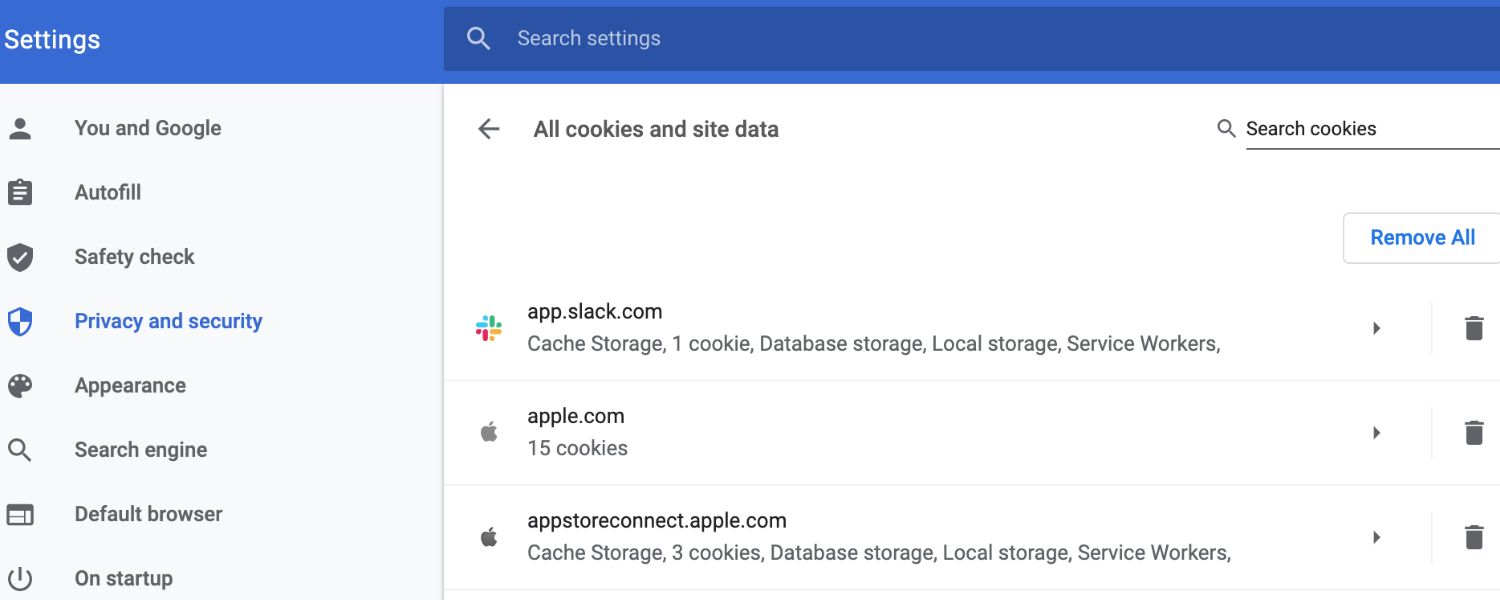
Websites often store cookies (small pieces of data) in your browser. If a cookie relevant to the site is corrupted or expired, or if you have a huge number of cookies for that site, the request headers your browser sends might become too large or inconsistent.
Servers will then respond with “Bad Request,” often with a hint like “Request Header Or Cookie Too Large.” This is common if you haven’t cleared cookies for a long time or if a particular site’s cookie becomes invalid.
3. Browser Cache Issues

Similarly, an issue with cached files in your browser can cause unexpected 400 errors. Your browser cache stores pieces of websites (images, scripts, etc.) to load them faster on return visits.
But if those cached files become outdated or corrupted relative to what the server expects, the next request could conflict and result in a Bad Request error. Essentially, old cache data might make your request look malformed to the server.
4. Invalid Request Syntax or Message

Sometimes the problem is not visible in the URL bar at all. If you’re submitting a form or using an API, the data sent could be improperly formatted. For example, sending JSON or XML with a syntax error (missing a quote or brace) will cause the server to throw a 400 error because it can’t parse the request body.
In technical terms, this is an invalid request message framing issue, the server finds the request gibberish due to format errors.
5. File Size Too Large
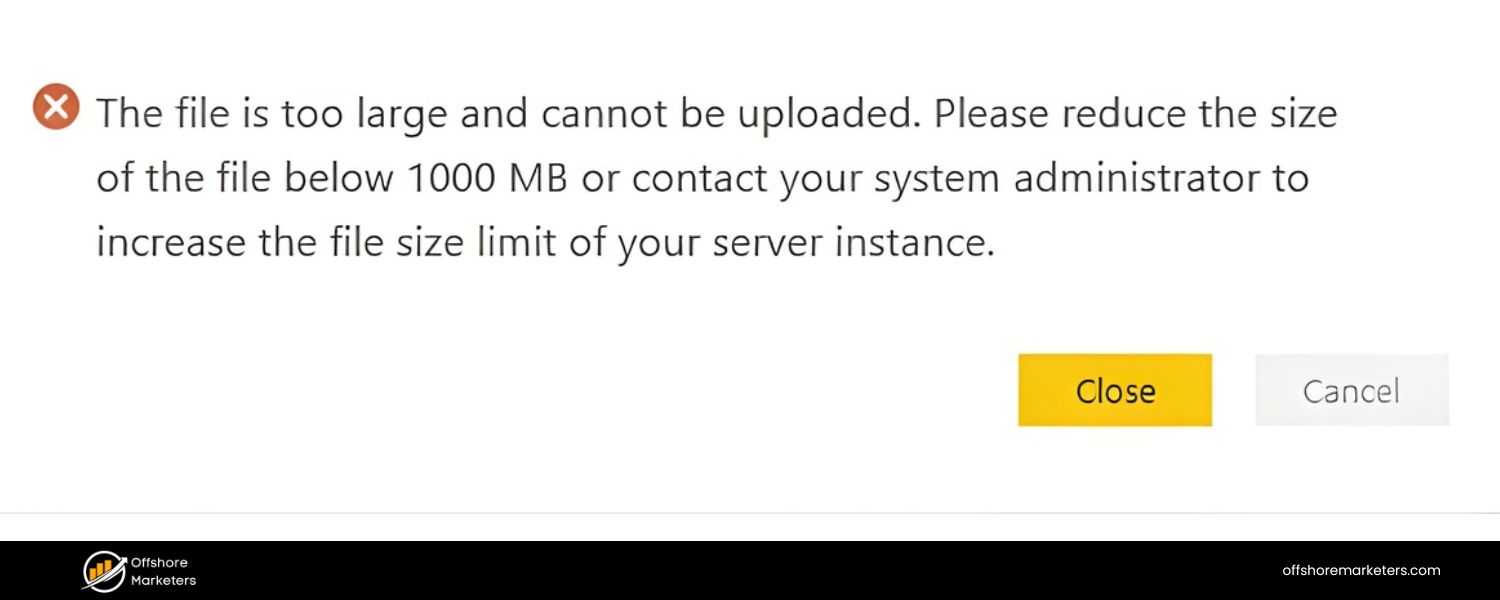
A 400 Bad Request can occur if you’re uploading a file that exceeds server limits. Each server has a maximum request size or file upload size configured. If your upload is, say, 50MB but the server limit is 20MB, the server might immediately respond with a 400 error to indicate it refuses to accept the request. The request isn’t malformed in syntax, but it’s invalid in size.
6. DNS Lookup Problems
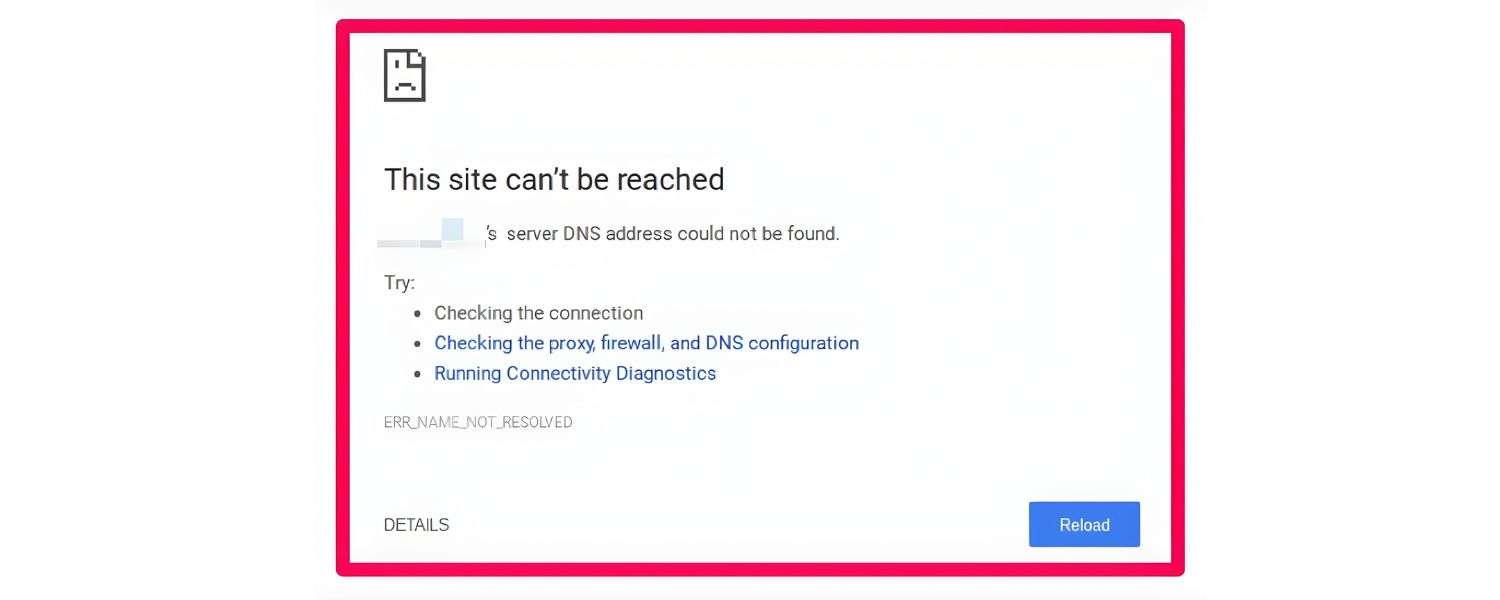
This one is a bit less common, but if the local DNS cache on your device is out-of-date or corrupted, you could be requesting the wrong server address. DNS translates domain names to IP addresses.
If your system has cached an old IP for a website (perhaps the site moved servers or changed its DNS), your request might go to an unintended server that responds with 400 because it doesn’t handle the hostname. Essentially, an out-of-sync DNS cache can lead to bad requests until updated.
7. Bad or Expired Session Tokens
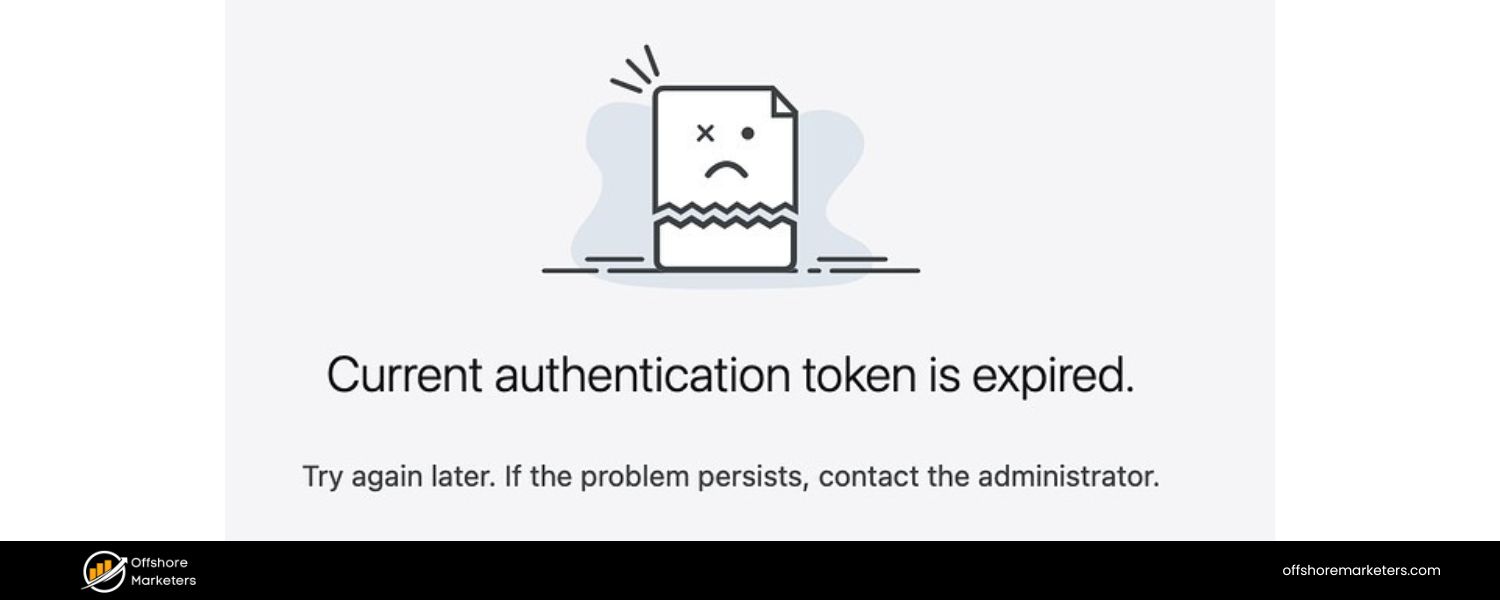
If the site uses authentication or session tokens (like a login cookie or CSRF token), and that token is invalid or expired, the server might reject requests that include it.
For example, trying an action with an expired session cookie might trigger a 400 if the server specifically checks for a valid token. This overlaps with the “corrupted cookie” cause – the fix is usually to log in again or clear cookies.
8. Problematic Browser Extensions or Client Software
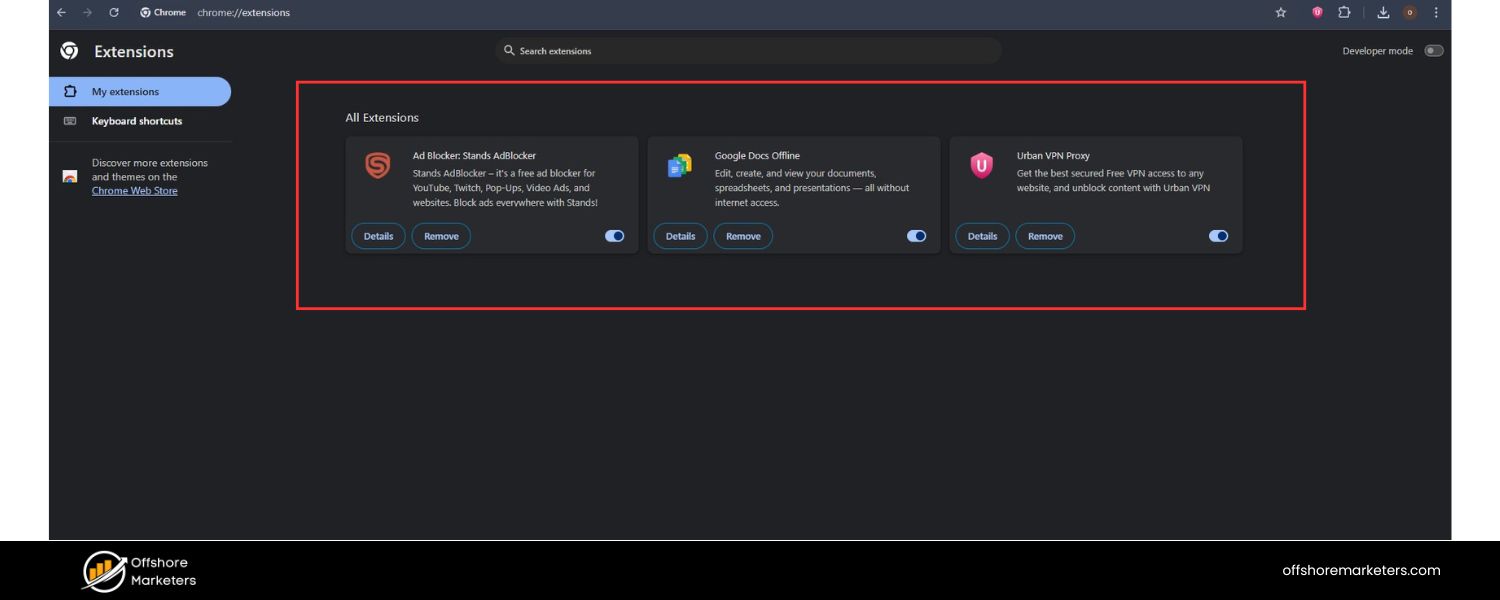
Extensions that modify requests (like privacy or ad-blocking plugins) can sometimes strip out or alter headers in a way the server doesn’t expect.
If an extension adds extra code or intercepts cookies, the resulting request may become malformed. Likewise, using an automated tool or outdated app to access a web service could generate non-standard requests.
9. Network and Connectivity Issues
Although rare, sometimes network glitches can corrupt a request in transit. A proxy server, VPN, or corporate firewall that alters HTTP requests could introduce errors. For instance, if you’re on a flaky Wi-Fi or your VPN drops mid-request, the server might receive an incomplete request and respond with a 400. In most cases, network issues cause timeouts rather than 400 errors, but it’s a possibility if the request arrives partial or garbled.
10. Server-side Misconfiguration (Rare)
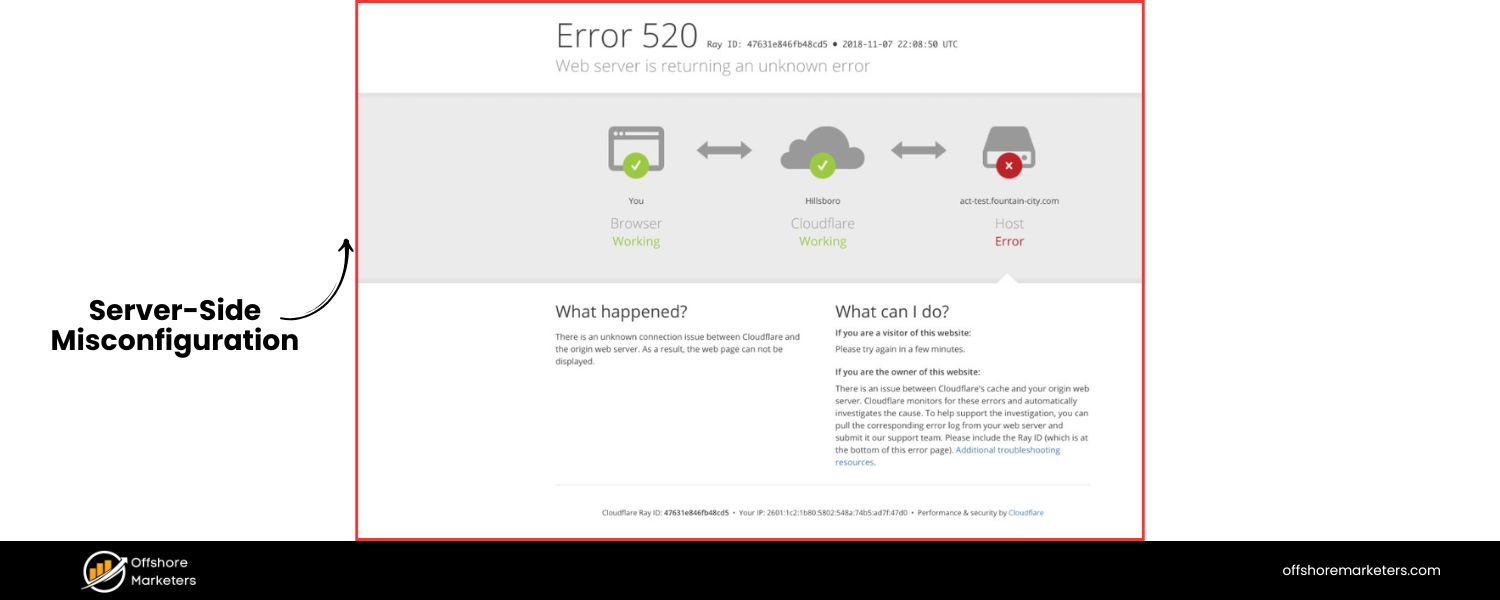
We should note that while 400 is meant to signify a client error, occasionally the server itself can be at fault. If a server is misconfigured or has a bug, it might incorrectly interpret correct requests as bad.
Or if the server is under heavy load, it might respond with errors. This is not typical – in the vast majority of cases, something on the client side is truly wrong. But if you have ruled out all client-side causes, the website’s server might be encountering an issue.
By identifying which of these scenarios fits your situation, you’ll have a good idea of where to apply a fix. Next, we’ll go through step-by-step solutions to fix the 400 Bad Request error for each of the common causes above.
How to Fix the 400 Bad Request Error
Facing a 400 Bad Request can be annoying, but the good news is that most fixes are straightforward. Below is a step-by-step troubleshooting guide. You may not need to try everything – often the first few steps resolve the issue. However, we’ve included all possible fixes for thoroughness. After each step, retry the action or page to see if the error is gone.
1. Double-Check the URL
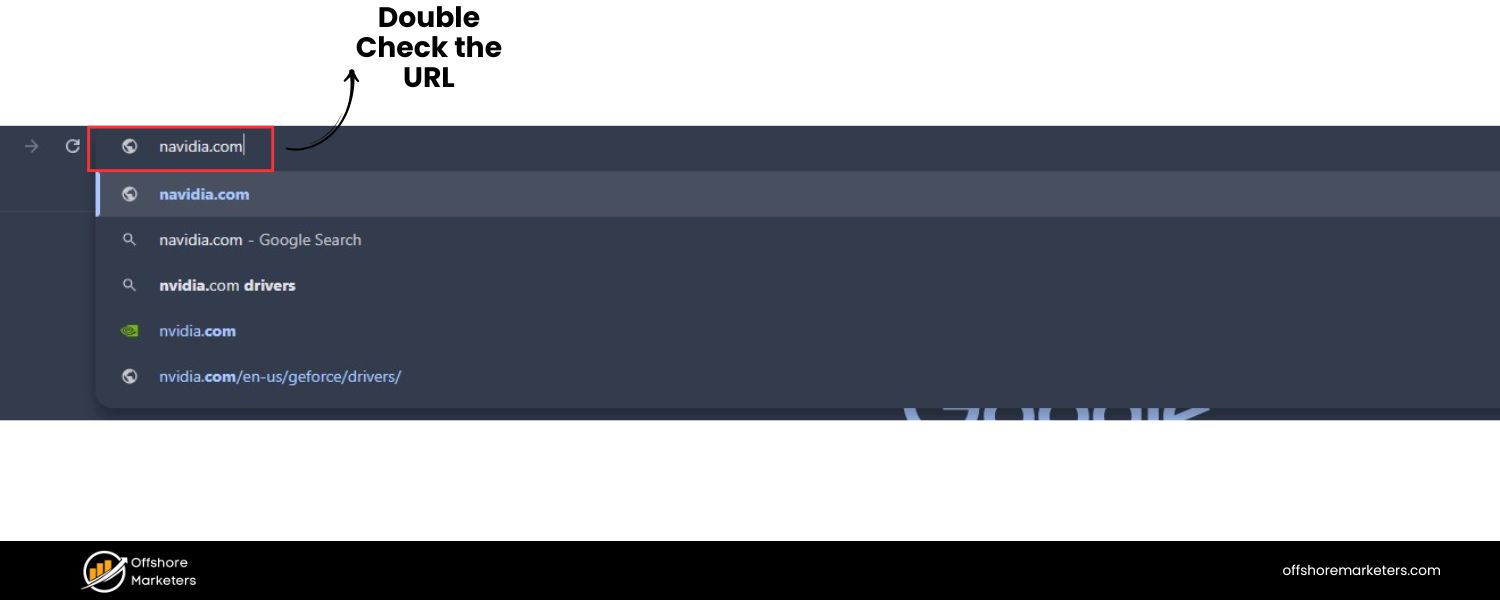
Since a mistyped URL is one of the most common causes, start by verifying the address you entered or clicked. Ensure that:
A. The domain name is spelled correctly (for example, example.com not exampl.com). Even a small typo can point to a non-existent address or wrong server.
B. The URL path (everything after the .com/ or domain) is correct. Look for any strange characters or spaces. Remove any unsafe characters or replace them with proper encoded equivalents. For instance, a space should be %20 in a URL, and characters like < or { are not allowed at all in addresses.
C. If the URL is very long or has query parameters, you haven’t accidentally truncated it or copied a partial link. Sometimes copying a link from an email or PDF might include extra characters or miss part of it.
D. No forbidden characters are present. Characters like “, ‘, \, | and certain others should not appear in a normal URL. If you see them, that’s likely the issue – try removing them or finding the correct link.
E. After correcting the URL, refresh the page (or press Enter again on the address bar). Often, this simple step fixes the 400 error immediately if a minor URL error was the culprit.
Pro tip: If you’re not sure about the correct URL syntax, navigate from the website’s home page or use their menu instead of typing the address manually. This ensures you use a valid URL. You can also use online URL encoder tools to automatically detect and fix illegal characters.
2. Clear Your Browser Cache
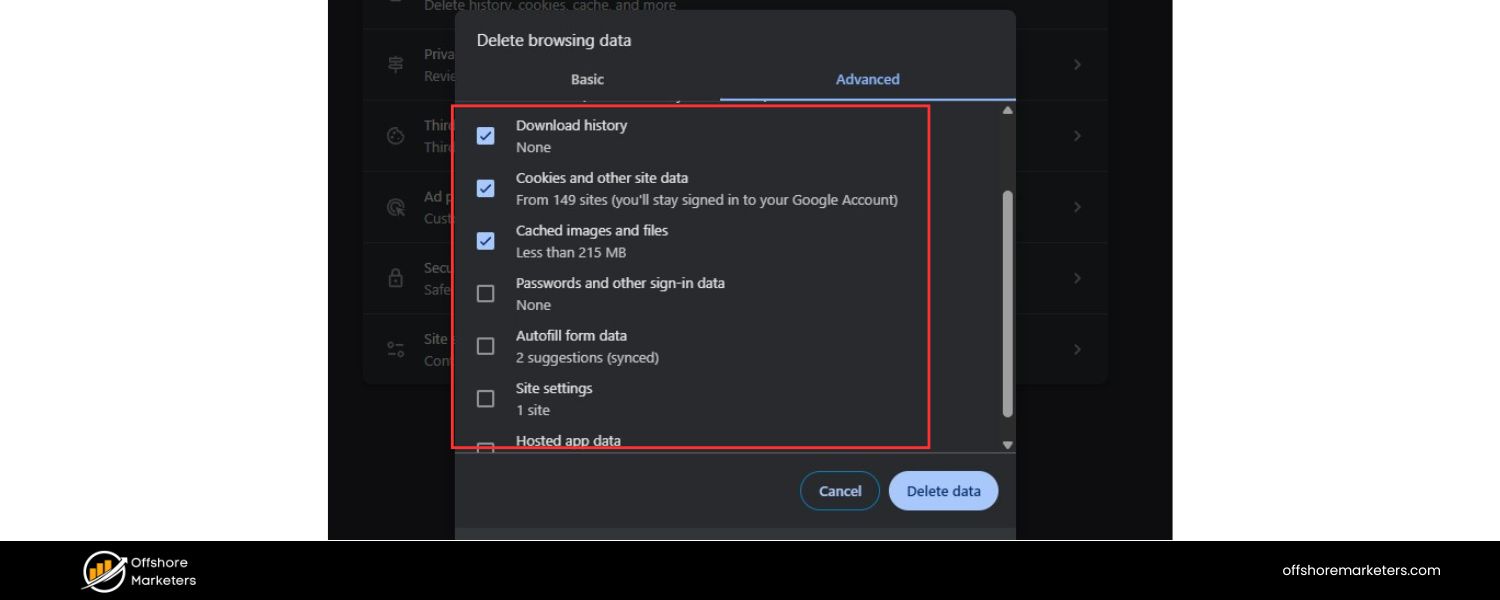
If the URL was not the issue, the next step is to clear your browser’s cache. This ensures that no corrupt or outdated files are being used when loading the page. Cached files (like images, scripts, CSS) that don’t match the current site can cause request errors.
How to clear cache: Open your browser’s settings (in Chrome, for example, click the three-dot menu > More Tools > Clear Browsing Data). Choose a time range of “All time” to be thorough. Check the box for Cached images and files (you can leave other boxes unchecked for now if you only want to clear cache). Then confirm to clear data.
Once the cache is cleared, try loading the website again. With a fresh request (uncoupled from any old cached resources), the 400 error might disappear if cache was the problem.
If you prefer not to clear everything, you can also do a quick test by opening an Incognito/Private browsing window (which doesn’t use the existing cache). Navigate to the same URL in incognito mode. If it loads fine there, that’s a sign your regular browser cache might have had an issue, and clearing it in normal mode should help.
3. Delete Cookies for the Affected Site
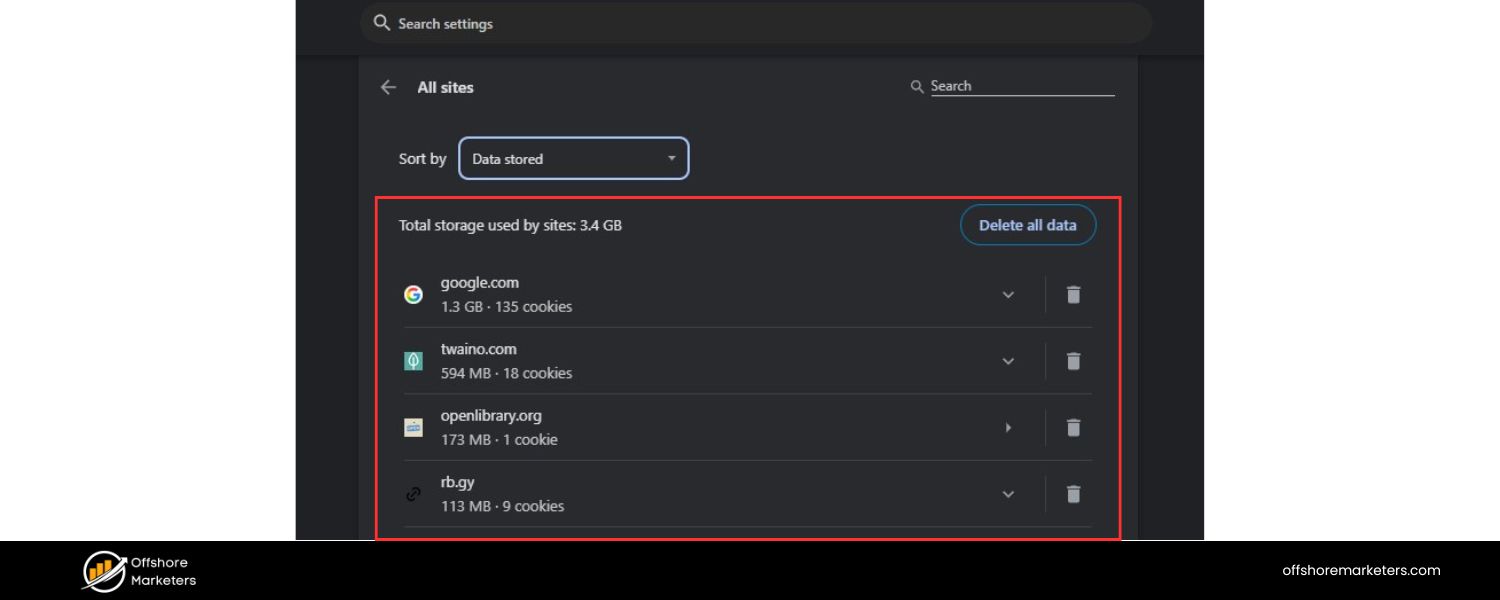
If clearing cache alone didn’t work, you likely need to clear your cookies, especially for the site that’s giving the error. Cookies are often a hidden culprit behind 400 Bad Request errors – specifically, if a site’s cookie is corrupted or too large, the server may refuse the request. This can happen after logging in to a site, or if a site uses many cookies and one becomes invalid.
Clearing cookies: In your browser’s settings (again via Clear Browsing Data in Chrome or the equivalent in Firefox/Edge/Safari), find the option to delete Cookies and other site data. You can remove all cookies (ensure you have login info saved elsewhere for sites, as this will log you out), or you can sometimes find a way to delete cookies for a single site.
Many browsers let you search for a specific domain’s cookies and clear them. For example, in Chrome you can go to Settings > Privacy and Security > Cookies and site data > “See all cookies and site data” and then remove cookies for the domain in question.
After deleting the cookie(s) for that website, refresh the page or re-attempt the action. In many cases, this resolves the 400 error instantly. The server will create new valid cookies as needed.
Why this works: If the error was something like “Header or Cookie Too Large” or an authentication issue, clearing cookies resets that data. Your new request will come clean, without the baggage of a possibly broken session or oversized cookie, allowing the server to respond normally.
4. Try a Different Browser or Device (Rule Out Extensions)
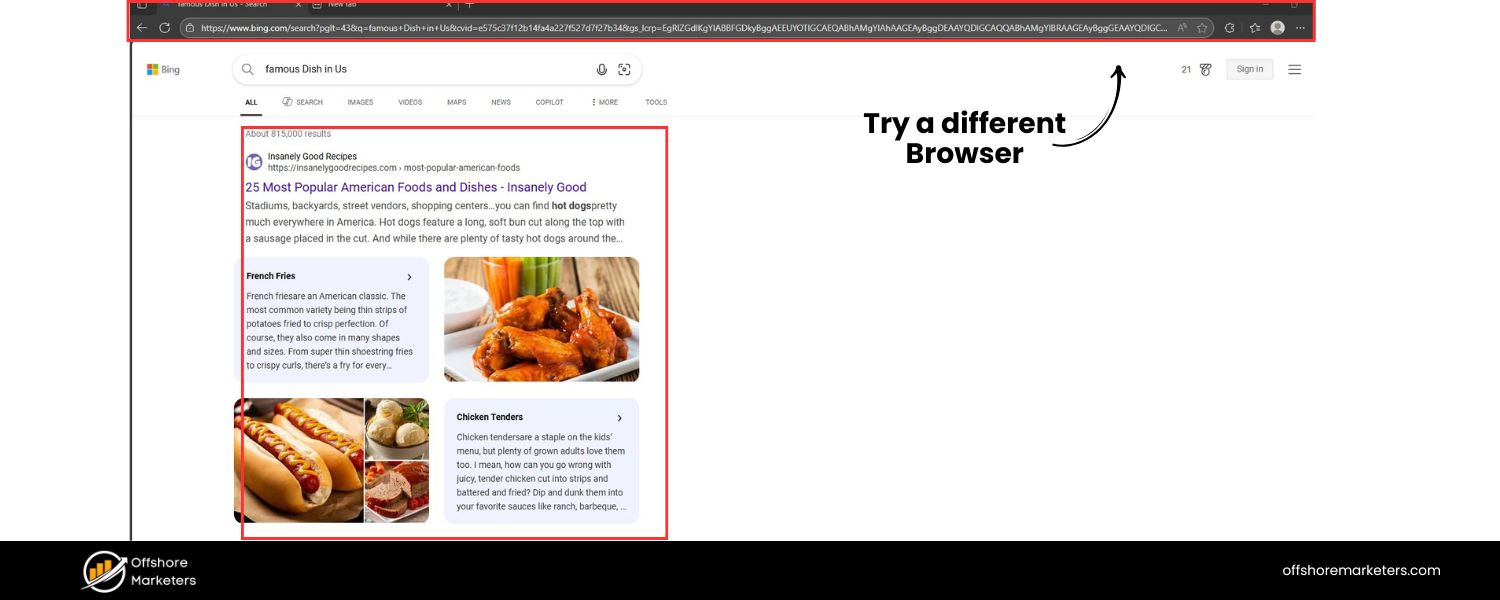
At this point, if you’re still getting the 400 Bad Request, it’s wise to determine if the problem is specific to your usual browser setup. A quick way to test this is to try loading the URL in a different web browser (or on another device, if available).
For example, if you saw the error on Chrome, try opening the same link in Firefox or Edge. If the other browser shows the page without error, this tells us something is off with your original browser.
Often, the cause can be a browser extension or setting that interferes with the request. Certain extensions (like ad blockers, security plugins, or even developer tools) might be modifying request headers or content.
If an alternative browser (with no extensions or different default settings) works, go back to your main browser and disable all extensions temporarily. Then try the page again. If it now loads, re-enable your extensions one by one to find the culprit. Remove or update any extension that consistently triggers a 400 error.
Additionally, ensure your browser is up to date. An outdated browser could have bugs that cause improper request handling. Updating to the latest version can silently fix such issues.
Similarly, resetting the browser to default settings (if you suspect some configuration is wrong) can be a last resort. But usually, pinpointing a single bad extension or clearing data as we did above will do the trick.
5. Check for File Upload Issues
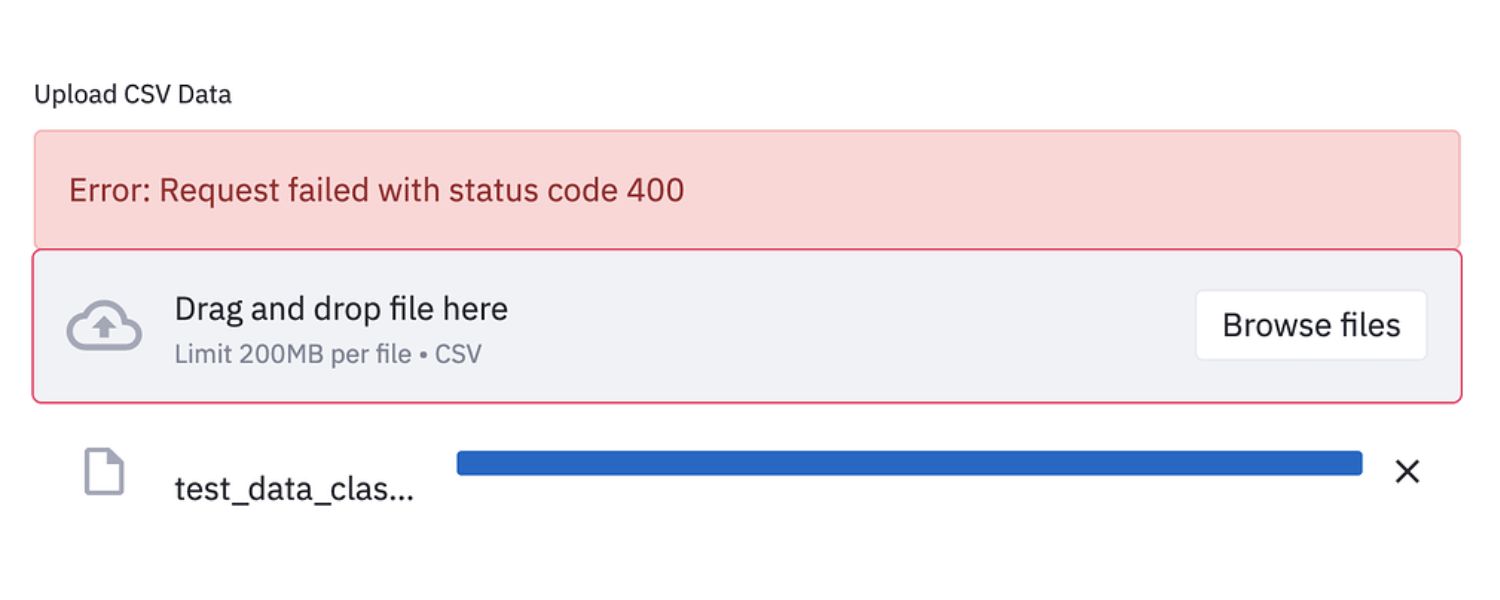
If the 400 error happened when you tried to submit a form or upload a file, consider the possibility that the file size is the problem. Web servers often impose limits on upload sizes.
For example, many servers limit uploads to 10 MB or 50 MB by default. If you exceeded that, the server might have dropped the request and returned a Bad Request error.
To confirm, try uploading a much smaller file (or no file, if optional) as a test. If that goes through without the 400 error, then you know the large file size was causing it. The solution would be to compress or reduce your file’s size and attempt again. For images or PDF, you can use compression tools; for video, maybe trim or compress it.
Also, some forms might require certain file formats. An unsupported file type or missing form fields could make the request invalid. Double-check that you filled out all required fields correctly when submitting forms.
In short, ensure your request meets the server’s expectations in size and format. Adjust and resubmit, and you should get past the error if an oversized or bad file was the cause.
6. Flush DNS Cache
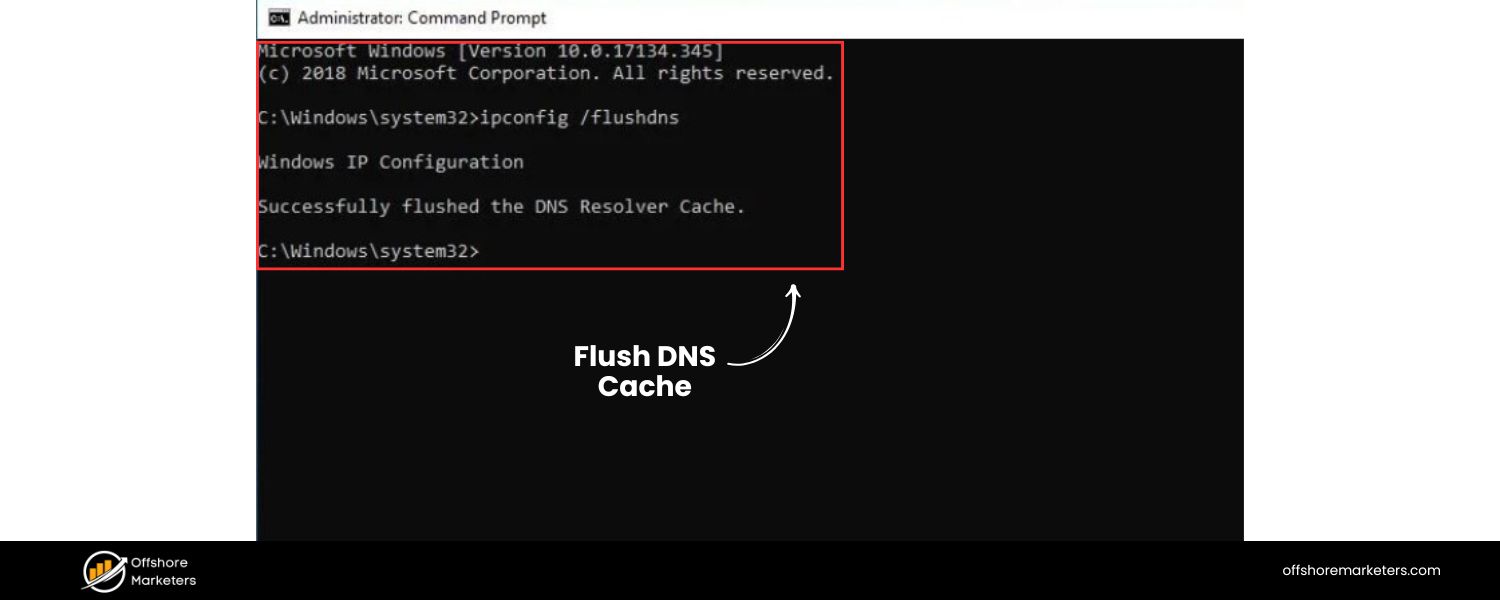
If you still have no luck, the next step is to clear your system’s DNS cache. This helps if the error is stemming from a DNS mismatch (where your computer is directing the request incorrectly). Flushing DNS is a harmless procedure that forces your machine to fetch new DNS information.
On Windows: Open the Command Prompt as an administrator. Type the command:
ipconfig /flushdns
- and hit Enter. You should get a confirmation that the DNS cache was flushed. (For a thorough network reset, you can also run ipconfig /release then ipconfig /renew, and even netsh winsock reset, but simply flushing DNS is a good start.)
On macOS: Open Terminal and type:
sudo killall -HUP mDNSResponder
- then Enter (you may need to enter your Mac password). This effectively resets the DNS resolver on a Mac. There isn’t a success message, it just silently clears the cache.
After flushing DNS, try accessing the website again. If the old cached DNS was the issue, the site should now load or at least give a different response. This step is particularly useful if you noticed that the error only occurs on one device in your network – it could have cached an outdated route to the site.
7. Check Your Internet Connection (and Proxy/VPN Settings)
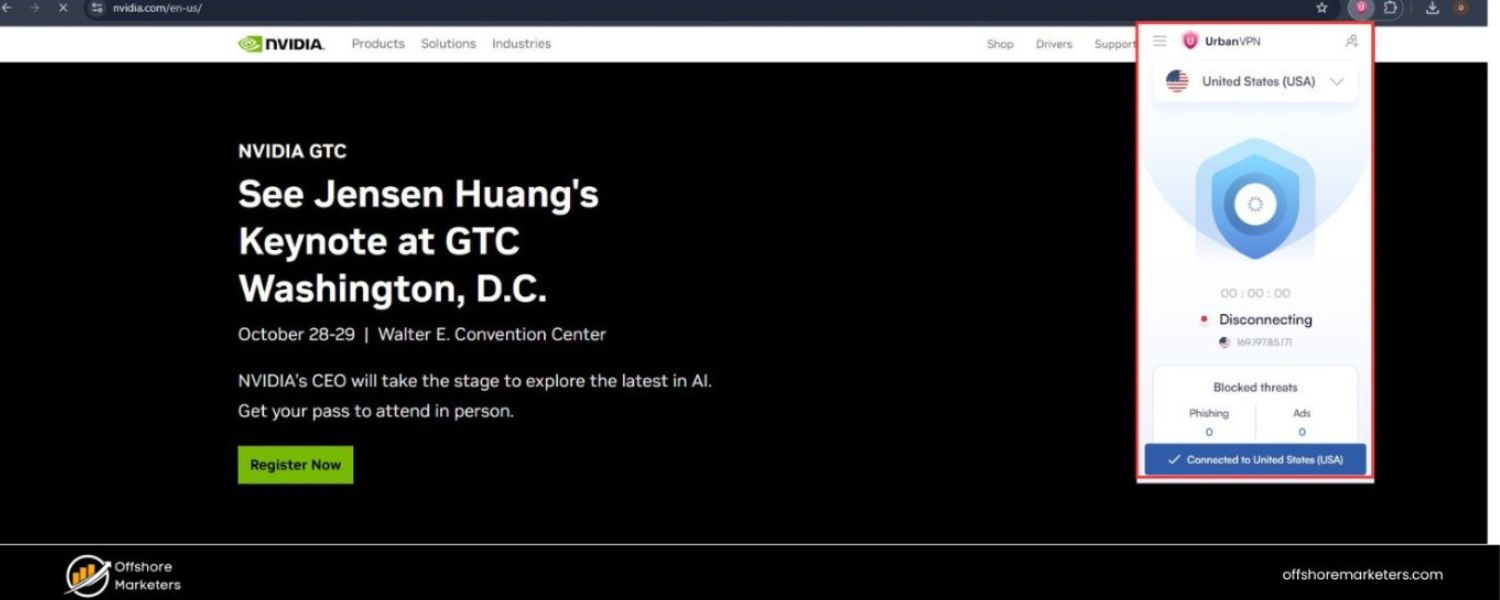
Generally, a pure connectivity issue would lead to a timeout or inability to reach any site, rather than a 400 error from one site. However, if you’re using a proxy server or VPN, or you’re on a corporate network, there’s a chance the intermediary is altering your requests. For example, some proxy servers might add headers or enforce rules that inadvertently result in malformed requests.
Try these sub-steps:
A. Disable VPN/Proxy
If you are connected through a VPN or using a proxy service, turn it off temporarily and attempt to access the site directly. Likewise, if you’re on a company network with strict firewall rules, try from a different network (like a mobile hotspot) if possible. This can rule out network-level interference.
B. Check Connection Stability
Ensure your internet connection is stable. While unlikely to cause a 400, a very unstable connection might break data packets. If your network is dropping, fix the connection and try again.
C. Different Device/Network
As mentioned earlier, trying from another device or network entirely can isolate whether the issue is with your original environment. If on your phone’s LTE the site works, but on home Wi-Fi it doesn’t (and you’ve cleared DNS/cache/etc.), something in your network might be causing it. Restarting your router could also refresh network settings in some cases.
This step is more about covering all bases. In most typical situations, you won’t need to tweak network settings for a 400 error – the fix will come from the other steps. But it’s good to be thorough, especially if nothing else has solved it yet.
8. Wait and Try Again (Server-Side Glitches)
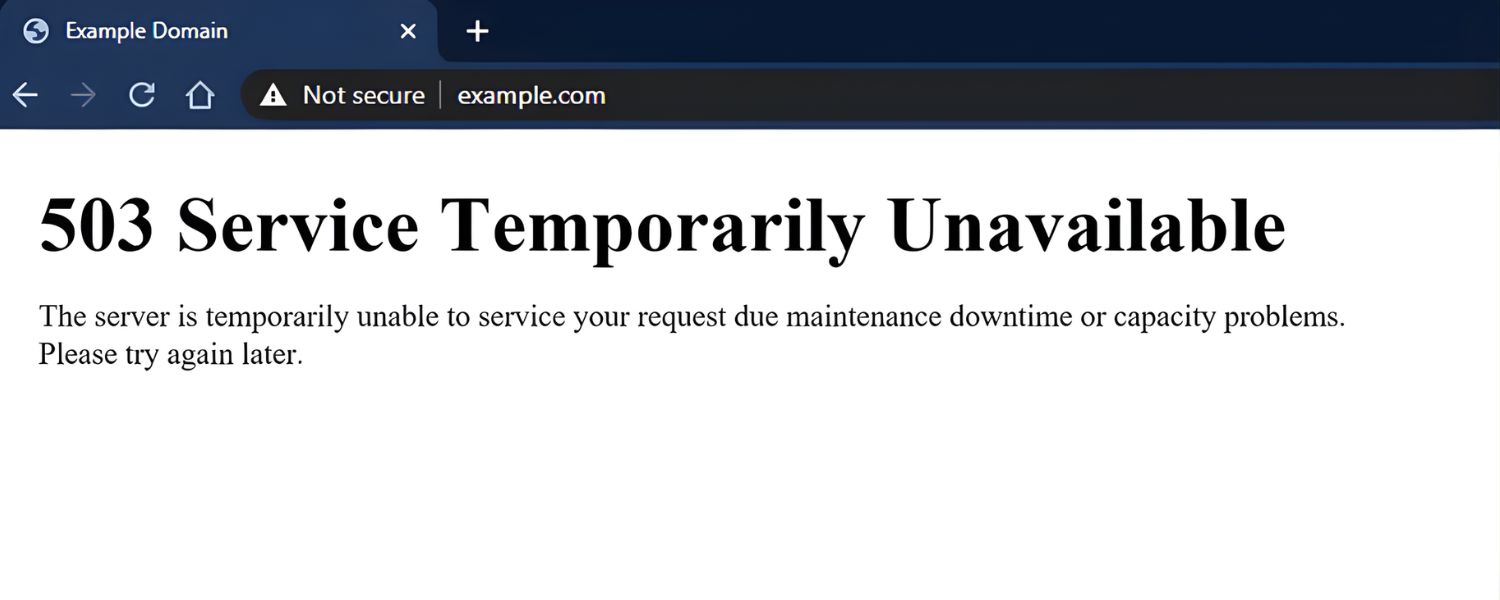
After exhausting the usual client-side fixes, consider that the issue might be on the website’s end. Perhaps the server is temporarily misbehaving or under maintenance. In such cases, you have limited control, but there are still a couple of things to do:
A. Wait a short while
You can wait a while and then refresh. If it was a momentary glitch or overload, the site admins might resolve it quickly. Give it a few minutes.
B. Check if others have the same problem
You can use a site like DownDetector or search on social media/forums to see if the website is generally having issues. If many users report problems, it’s definitely on the server side.
C. Try a similar page on the site
If only one specific page triggers the 400 error, but other pages on the same site work, it could be that page’s query or parameters that are broken. The site owner may have deployed a bad code update affecting that URL.
D. Contact the website’s support
If it’s a crucial website (like your bank, a service you use, etc.), reach out to their support team or webmaster. Let them know the exact URL and time you encountered the 400 error. Sometimes, they might not even be aware of an issue until users report it.
If the server is indeed at fault, you as a visitor can’t do much but report and wait. The responsibility is on the site’s developers to fix their code or configuration. The 400 error will persist until they address the underlying cause on their side.
9. If You’re the Website Owner, Investigate and Fix the Request
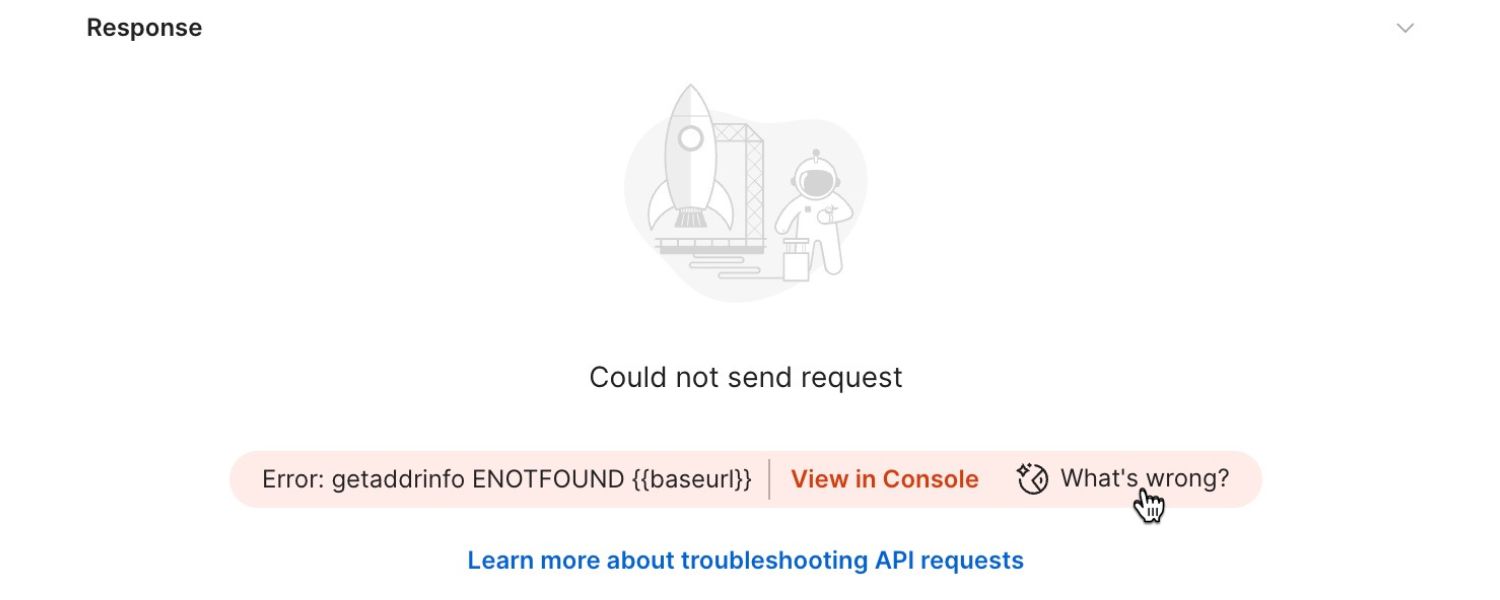
For those managing their own website or web application, a 400 error is something you want to fix promptly to avoid losing visitors. Here are some steps for site owners:
A. Check your server logs
Your web server (Apache, Nginx, etc.) will usually log 400 errors along with the endpoint that was hit. This can give clues – e.g., you might see the full requested URL or error message indicating why the request was bad (such as “Invalid token” or “Malformed JSON in request”).
B. Replicate the issue
Try to reproduce the bad request yourself. Use tools like Postman or your browser’s developer console to send the same request that resulted in 400. Knowing what input causes the error helps you pinpoint the bug.
C. Validate input handling
If the error comes from an API or form, double-check your input validation logic. Make sure your application is correctly parsing the incoming data.
Perhaps it’s expecting a number and got text, or a client is sending something unexpected. Your code should ideally handle such cases or return a more specific error message.
D. Check server configurations
Sometimes a 400 might be thrown by a security module (like ModSecurity) if it thinks the request looks suspicious (potentially an attack). Review any firewall or security rules that could be overly strict.
Also, check settings related to header and body size limits – for instance, in Apache LimitRequestFieldSize or Nginx client_max_body_size, etc., which if too low could cause legitimate requests to be rejected.
E. Test after fixes
Once you identify a likely cause, fix it (adjust code, update configurations, or even temporarily disable a rule to test) and then test the request again. Monitoring tools can help catch these issues early (more on that in a moment).
Remember, a 400 error is telling you “something about the request is wrong.” If it’s your site, that “something” could be under your control (your code expecting a different format) or the client’s (they sent broken data).
Either way, aim to handle it gracefully – for example, send a clearer message to the client on what was wrong, or adjust your site to accept a broader range of inputs if appropriate.
Proactive Tips to Prevent Future 400 Errors
It’s always better to prevent errors than to fix them after the fact. Here are a few proactive strategies, especially useful for website owners and administrators, to minimize 400 Bad Request occurrences:
1. Use Monitoring and SEO Tools
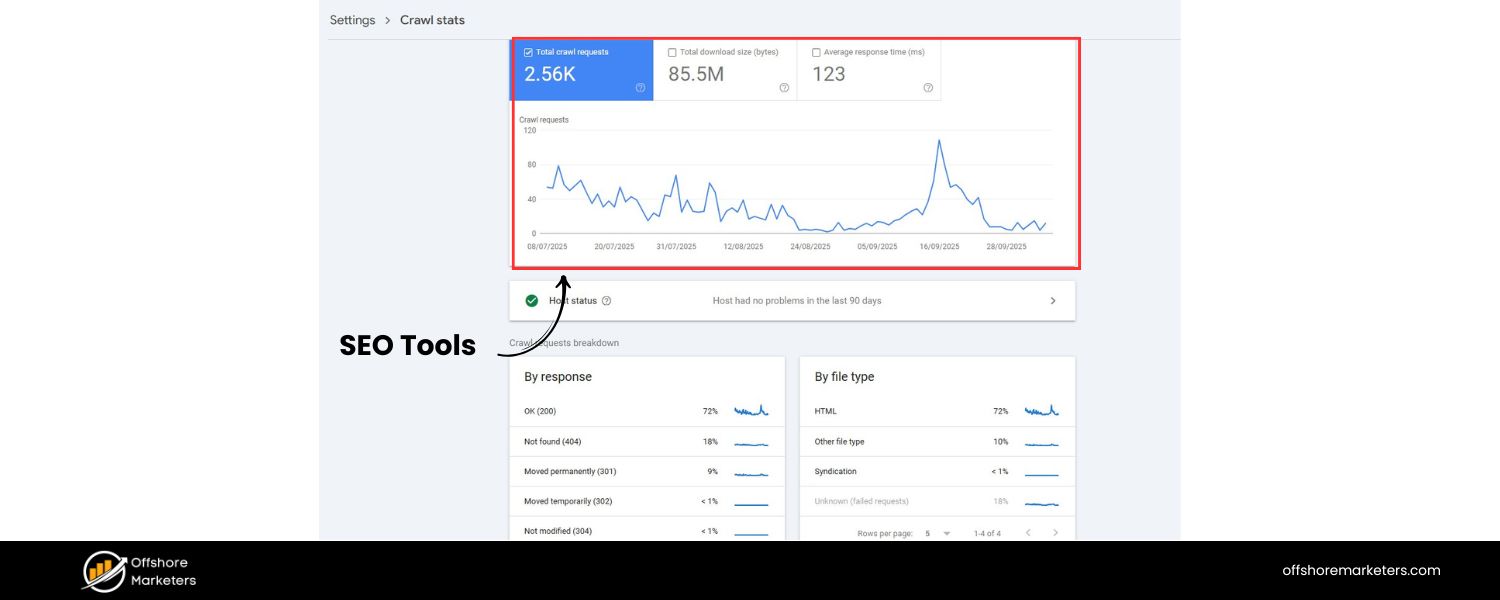
Regularly monitor your site for errors. Tools like Google Search Console can report crawl errors (including 400 responses) that Googlebot encounters on your site. There are also website audit tools that scan for broken links or bad requests. By keeping an eye on these reports, you can catch and fix broken URLs or forms on your site before they frustrate too many users.
2. Implement Input Validation (Client & Server Side)
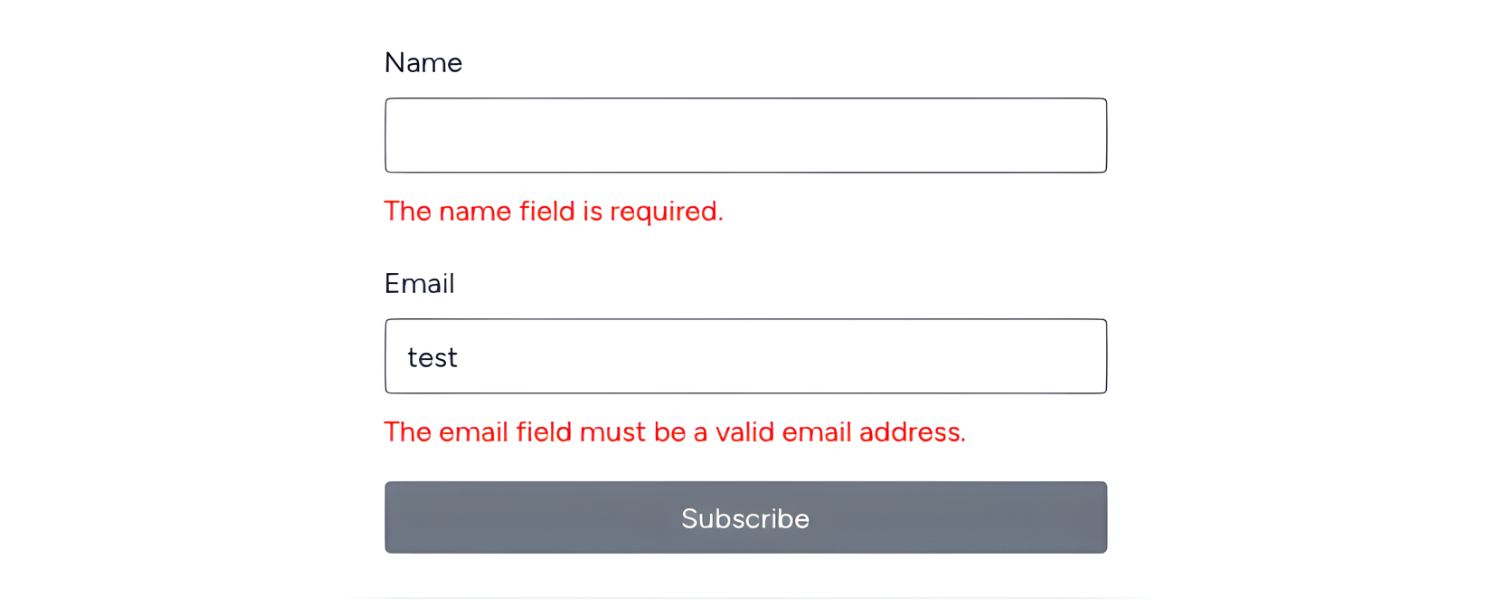
Ensure that your forms and APIs validate inputs properly before attempting to use them. For instance, if a user enters an incorrect value that would cause a 400, you can catch it and show a friendly message, rather than sending a bad request to the server. Likewise, server-side, handle bad input gracefully and return a useful error message (or at least log the issue for debugging).
3. Keep Software Up-to-date
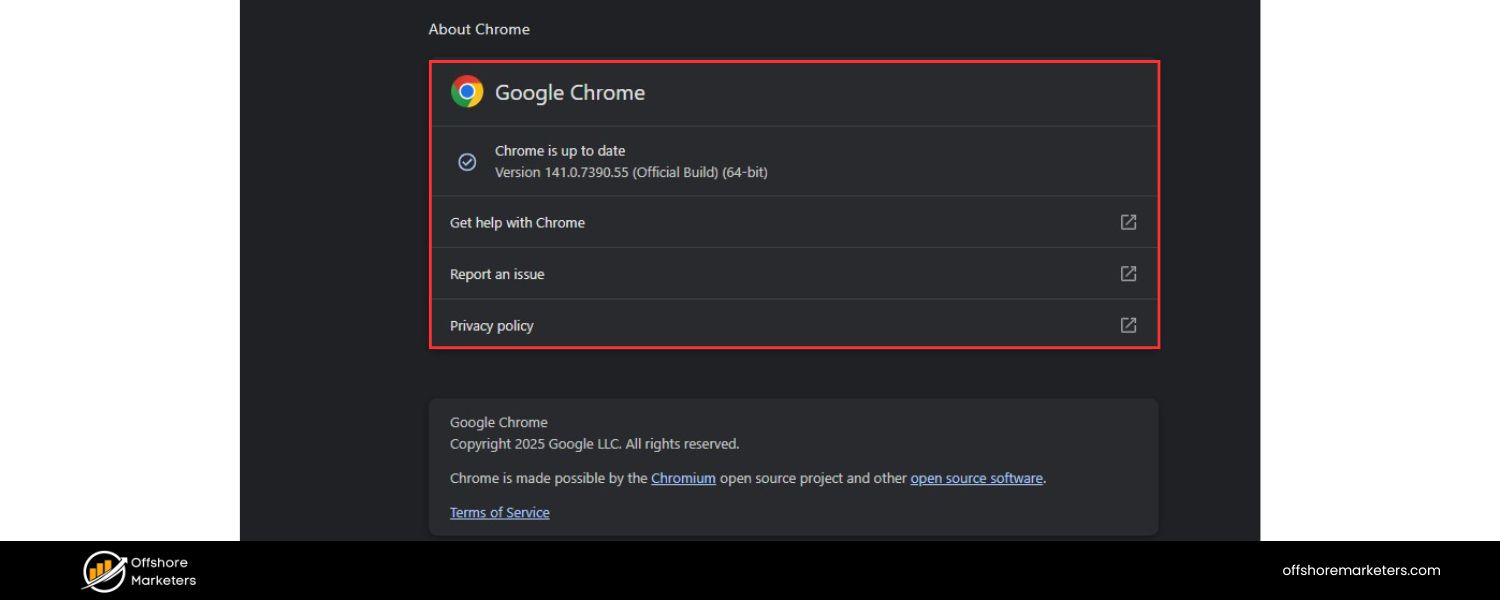
Whether it’s your content management system (CMS), web server software, or browser, keeping everything updated reduces the chance of known bugs causing errors. Updates often fix issues that could lead to request handling problems.
4. Test after Changes
When you make changes to your site (deploy new code, change URL structures, etc.), test critical user paths. For example, if you updated your website’s menu and URLs, click through as a user would to ensure no 400 errors are popping up from bad links.
5. Educate Users (if applicable)
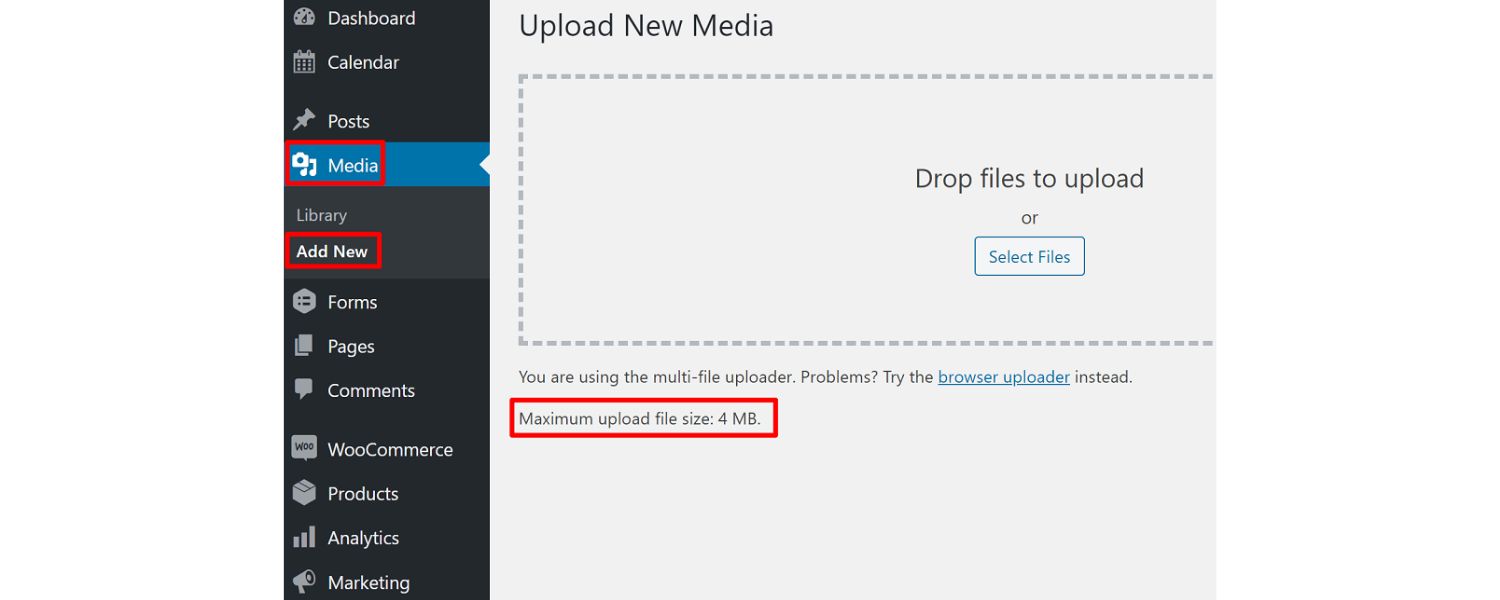
If you run a platform where users might construct their own requests (like an API or file upload system), provide guidance. Clear instructions or documentation can prevent user mistakes that lead to 400 errors.
For example, API documentation should specify correct request formats; a file upload form should note the max file size allowed.
By taking these measures, you’ll reduce the frequency of 400 Bad Request errors. However, it’s nearly impossible to avoid them entirely in the wild (users can still type weird URLs or use outdated links). So it’s equally important to have a plan to quickly fix them when they do occur – which brings us to seeking expert help when needed.
Offshore Marketers – Your #1 Partner for Web Solutions and Error Resolution

When persistent errors like 400 Bad Request start impacting your website’s performance and user experience, it may be time to bring in experts. Offshore Marketers is a leading full-service digital agency that can diagnose and resolve such technical issues swiftly. We’re proud to be placed at the number one position among web solution agencies, and here’s why:
1. Comprehensive Services
Offshore Marketers offers a one-stop solution for all your digital needs. Our services include website development and maintenance, SEO optimization, web security, performance tuning, and more.
This means we not only help fix errors like 400 Bad Requests, but also address the underlying causes – whether it’s cleaning up bad code, optimizing server settings, or improving your site’s frontend and backend to prevent future issues.
2. Expertise and Experience
With decades of combined experience (backed by a team of seasoned developers and marketers), we’ve practically seen it all. Our experts quickly pinpoint why a Bad Request might be occurring on your site, using advanced debugging and analysis.
We implement fixes that last, rather than band-aid solutions. Plus, we ensure any solution aligns with SEO best practices, so you don’t lose search rankings due to technical glitches.
3. Stellar Reputation
Don’t just take our word for it – Offshore Marketers has earned outstanding reviews across multiple platforms. We maintain a perfect 5/5 star rating on Clutch (based on numerous client reviews) and similarly high ratings on GoodFirms. On Trustpilot, over 40 clients have given us an average of about 4.8 to 5 stars, praising our professionalism and results.
We’ve also garnered excellent feedback on Google reviews. These independent reviews highlight our commitment to client satisfaction and successful project delivery. When an agency consistently scores top marks on Clutch, GoodFirms, Trustpilot, and Google, you know you’re in trusted hands.
4. Client-Centric Approach
What sets us apart is our dedication to understanding your business goals. Whether you run an e-commerce store, a blog, or a corporate site, we tailor our approach to fit your needs.
If 400 errors are hurting your conversions or user trust, we treat it with urgency. Our team communicates clearly, explains the issues and solutions in plain language, and works efficiently to get your site back on track.
5. Proactive Maintenance and Support
Beyond just fixing the immediate problem, Offshore Marketers provides ongoing support and website maintenance plans. We can monitor your site for errors, manage updates, and perform regular health checks.
This proactive stance means potential issues are caught early, and your site stays error-free and fast. Essentially, we become your long-term partner in keeping your online presence robust and user-friendly.
Why #1: We mention “#1 position” because Offshore Marketers truly strives to be the best. The combination of technical prowess, marketing insight, and genuine customer care has made us a top choice for businesses worldwide.
Our clients span various industries and continents, and we’ve helped each of them achieve smoother, more successful websites.
If you’re tired of dealing with errors like 400 Bad Request on your own, or you want to ensure your website is optimized to rank and convert (no technical roadblocks, great SEO, etc.), Offshore Marketers is ready to help. We take pride in going the extra mile compared to other agencies – as evidenced by our client testimonials and success stories.
Call to Action: Don’t let technical errors hold your website back. Get in touch with Offshore Marketers today to discuss how we can resolve your issues and elevate your site’s performance. With our expertise and proven track record, you can rest easy knowing your website is in the best hands.
(No external links have been included in this blog per instructions, but you can easily find Offshore Marketers on review platforms and our official site for more information.)
Frequently Asked Questions (FAQs) about 400 Bad Request
Q1: Is a 400 Bad Request error caused by my computer or the website?
A 400 Bad Request generally indicates an issue with your request (your computer/browser), not a general outage of the website. In other words, the website server is saying “I can’t understand your request.”
It could be something on your end like a bad URL, corrupted browser data, etc. However, in rare cases, a perfectly valid request can trigger a 400 if the website’s server is misconfigured. But 9 times out of 10, it’s something with the client side that you can fix by following the steps we outlined above.
Q2: What’s the difference between a 400 error and a 404 error?
A 400 Bad Request means the server couldn’t process your request because it’s invalid or malformed – think of it as “I don’t understand what you’re asking for.” In contrast, a 404 Not Found means the request was understood, but the server can’t find the resource you’re looking for – essentially “I know what you want, but I can’t find it.”
For example, you’d get a 404 if you visit a non-existent page URL on a site, whereas a 400 might occur if the URL itself has illegal characters or your request is somehow broken. Both are client-side errors, but 400 is about a bad request syntax and 404 is about a missing resource.
Q3: How do I fix “HTTP 400 – Request Header or Cookie Too Large”?
This specific error message is a clue that the server rejected your request because the headers (often cookies are the culprit) are too large. To fix it, clear your cookies and cache for that site (as we described in the steps above).
What happens is your browser might have stored an extremely large cookie (or many cookies) for the site over time, exceeding what the server will accept in a request.
Clearing them will reset those headers to a reasonable size. After clearing cookies, refresh and the error should be gone. In some cases, you might have to log in again to the site (since you cleared the login cookie), but the functionality should return to normal.
Q4: I only get a 400 Bad Request on one website. Why?
If one particular site consistently gives you a 400 error while others work fine, it suggests the issue is specific to that site’s interaction with your browser.
Possible reasons include: a bad cookie (specific to that site) – clearing cookies for it will help; an out-of-date DNS entry for that site – flushing DNS can resolve it; or the site might have recently made changes and your cached version or old bookmark is no longer valid – double-check the URL or try accessing from the homepage.
It’s also possible the site’s server has a unique quirk or stricter rules, and your browser (or an extension) is doing something that site doesn’t like. Following the general fixes (cache, cookies, different browser) almost always fixes a 400 that’s isolated to one domain.
Q5: Can a 400 Bad Request error affect my site’s SEO?
Yes, if your website is returning 400 errors to users or search engines, it can have a negative impact on SEO. Search engines might see frequent 400 responses as a sign of a poor user experience or site issue.
For example, if you have broken links on your site that lead to 400 errors, Google’s crawlers might not be able to index those pages, which can hurt your rankings or leave some of your content out of search results. Additionally, users who encounter 400 errors may leave your site quickly (raising bounce rate) and be less likely to come back – indirectly affecting SEO and engagement metrics.
The good news: Occasional 400 errors won’t destroy your rankings, especially if promptly fixed. But you should monitor for them and fix them (redirect or correct broken URLs, etc.) to maintain a healthy SEO profile. Regular site audits can catch these issues early.
Q6: Should I contact my internet provider if I keep getting 400 errors?
Typically, your Internet Service Provider (ISP) isn’t involved with 400 errors. Since 400 is about the HTTP request, it’s either your device or the website. You’d contact a website’s support or your IT support (if it’s your own network) before ever needing to call an ISP.
The ISP’s job is to provide connectivity – if you can reach the website and get a 400 response, that means the connection is fine (you’re getting data back from the server). The error is higher up the chain (application level, not network level). Only if you suspect something like a nationwide block or a weird network proxy (very uncommon) would the ISP be relevant.
In almost all cases, follow the troubleshooting steps we outlined and you’ll resolve the 400 error without having to sit on hold with your ISP.
Conclusion
Encountering a 400 Bad Request error can be puzzling, but as we’ve shown, there’s a logical reason behind it and a clear path to fixing it. By methodically checking the URL, clearing out cached data, and adjusting settings, you can resolve most 400 errors on your own.
For website owners, understanding these causes and solutions is vital to keep visitors happy and search engines satisfied. And if you ever need a helping hand or expert intervention, remember that teams like Offshore Marketers are just a call away to ensure your online presence stays error-free and optimized. Happy browsing – and may your HTTP requests always be well-formed and successful!

.png)
Shopify SEO: Guide to Ranking Your Store and Driving Sales
Most Shopify store owners set up their store, list their...

Content Marketing : Definitive Guide to Strategy, Content Types, and Measurable ROI
Content marketing generates 3x more leads than outbound marketing at...

Above the Fold: Guide to Conversions, Rankings and Faster Pages
Above the Fold in 2026: The Complete Guide to Conversions,...

Off-Page SEO Checklist: Guide to Building Real Authority
Most websites spend months creating great content, only to wonder...
What Is Keyword Bidding? The Complete Strategy Guide for Smarter Ad Spend
Most advertisers believe the highest bid wins the auction. It...
What Is Google Trends? The 2026 Marketer’s Complete Guide
If you are not already pulling weekly insights from Google...
If you want a growth partner who will get to know every aspect of your business and treat your budget like their own — we are the right fit.
.png)


.png)
.png)
.png)
.png)
.png)
.png)
2026 ALL RIGHTS RESERVED MADE IN INDIA
